Google Docs will edit Markdown files without converting them
Google is rolling out native Markdown editing in Docs and previews in Drive. What small teams can try, who gets it and which formatting won't survive.
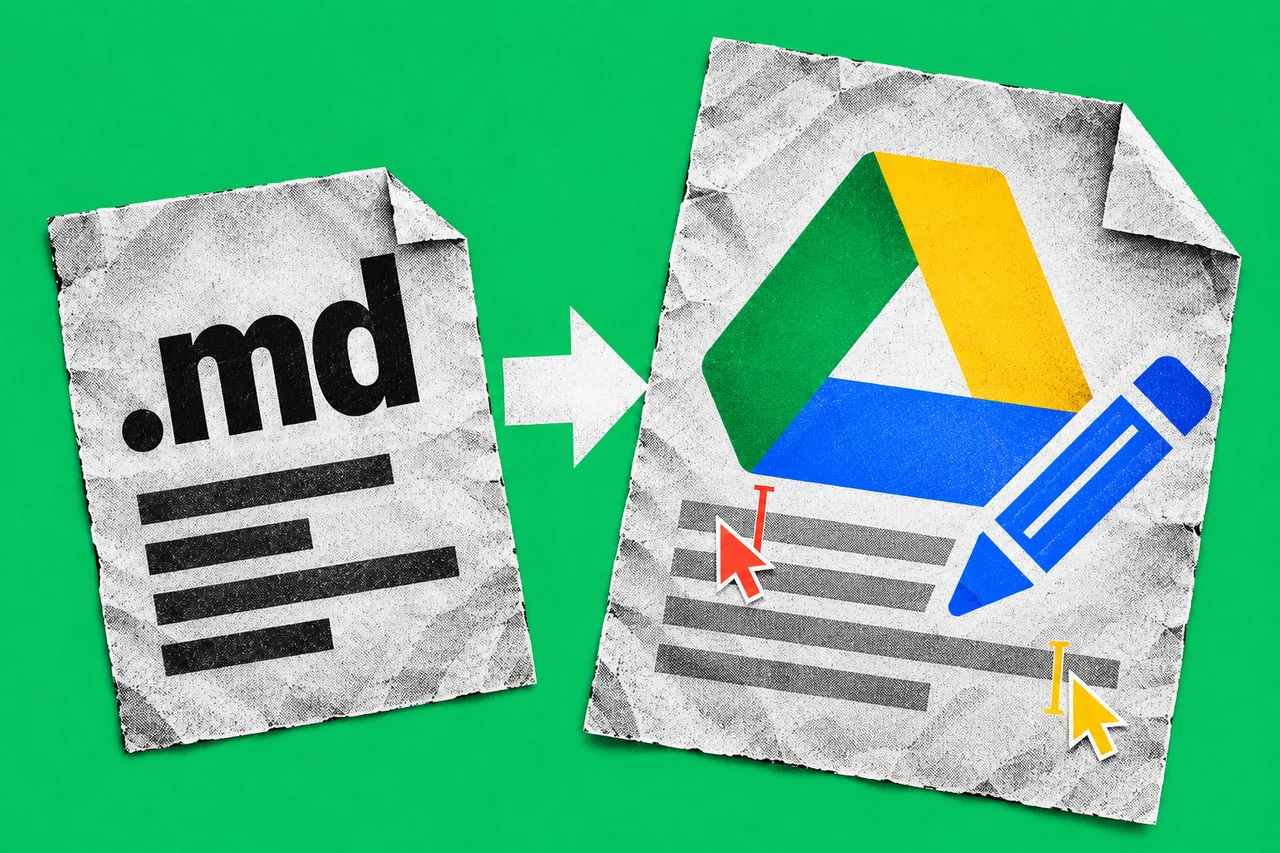
Google is making an awkward file handover easier for small teams. A Markdown document will be able to stay in its original format while colleagues edit it and leave comments in Google Docs, instead of converting it into a Google document first.
The company’s 5 October announcement also adds formatted previews in Drive, including clickable links and tables. The change covers files ending in .md or .markdown.
For a business receiving website copy, instructions or AI-generated drafts in that format, the useful part is a shared place to review the text. The catch is that some familiar Docs formatting won’t survive in Markdown.
Who gets it, and when
Google says the rollout began on 5 October 2026 for both Rapid Release and Scheduled Release domains, with up to 15 days for feature visibility. An account without it on 6 October may simply be waiting its turn. There is no admin control or end-user setting to enable the feature.
The announcement includes all Google Workspace customers and users with personal Google accounts. It names no Australia-specific exclusion or separate Australian launch date, and specifies no additional charge or paid-plan upgrade. An existing user has no upgrade decision to make on the information Google has published.
The sensible first step is to try an unimportant sample once the feature reaches the account. Google’s announcement specifies no requirement or deadline to convert existing documents or change the business’s file system.
What keeping the file as Markdown means
Markdown uses ordinary text with simple marks for formatting. A heading, for example, can begin with a hash sign and a space. Google’s existing Markdown instructions cover converting pasted Markdown into Docs content, copying text as Markdown and downloading a Doc as an .md file.
The new feature removes a conversion step. Google says a team can edit the Markdown file directly, with real-time collaboration and commenting, while keeping the file type. Staff don’t have to write the formatting marks themselves to work on it in Docs.
Take an illustrative example: a designer supplies a draft services page as an .md file. The office manager needs to correct the service area and the owner needs to approve the wording. Reviewing that file together could be simpler than maintaining a converted Doc and a separate Markdown copy for the designer.
That is a useful trial for a business already exchanging these files. If the team only uses ordinary Docs and nobody needs Markdown, there is little reason to change a working process just because another format is supported.
The formatting trade-off
Google’s new help page describes a straightforward route: upload the .md file to Drive, then double-click it. Docs opens it in Markdown Mode, with an .md tag beside the title. For a preview, right-click the file and choose Open with → Preview; the viewer can switch between Markdown and Preview.
There are limits. Smart chips become text or links, HTML formatting becomes plain text, and font colours, highlights and alignment disappear. Google points to File → Version history to restore the original.
Those losses matter if a team uses coloured text or highlighting to signal approval. Our recommendation is to write the status explicitly in the text, rather than relying on appearance, and keep presentation-heavy proposals in the format that preserves their layout.
Before making Markdown the standard handover format, check one sample in every tool that will receive it. Ask the recipient to open the revised file and confirm that the headings, links, tables and comments needed for the job remain usable.
Agree who reviews and who can edit
A cleaner handover still needs an owner. Decide which file is the working copy, who checks the wording and when it is ready to send. For an AI-produced draft, our guide to choosing a first AI task you can check is a useful starting point: use approved sample material and record the checking and corrections it needs.
Review access too. Google’s sharing guidance distinguishes viewers, commenters and editors, and warns that work accounts may restrict sharing outside the organisation. Give a reviewer commenting access if changing the text is someone else’s job. Check the parent folder as well: access granted there is inherited by its files.
Teams reviewing their Workspace setup can also check our coverage of Google Meet’s automatic note-taking changes, alongside the wider Software & systems section.
Checklist
- Try a sample in your business’s Google Drive account. Once the rollout reaches it, open a non-confidential .md file in Docs and look for the .md tag beside its title.
- Check the sample with its intended recipient. Confirm that the revised file’s headings, links, tables and necessary comments are usable in the receiving tool.
- Review the file and parent folder’s access in Drive. Give each colleague the viewer, commenter or editor role their work requires.
- Name the working copy and its reviewer. Record who checks the content and approves it before the Markdown file leaves the business.
Tick items as you go. Your ticks stay in this browser.