Windows 11 26H2 is here. Test the office PCs before updating the lot
Microsoft's Windows 11 26H2 rollout has begun. Check eligibility, safeguard holds and business-critical apps before updating every office PC.
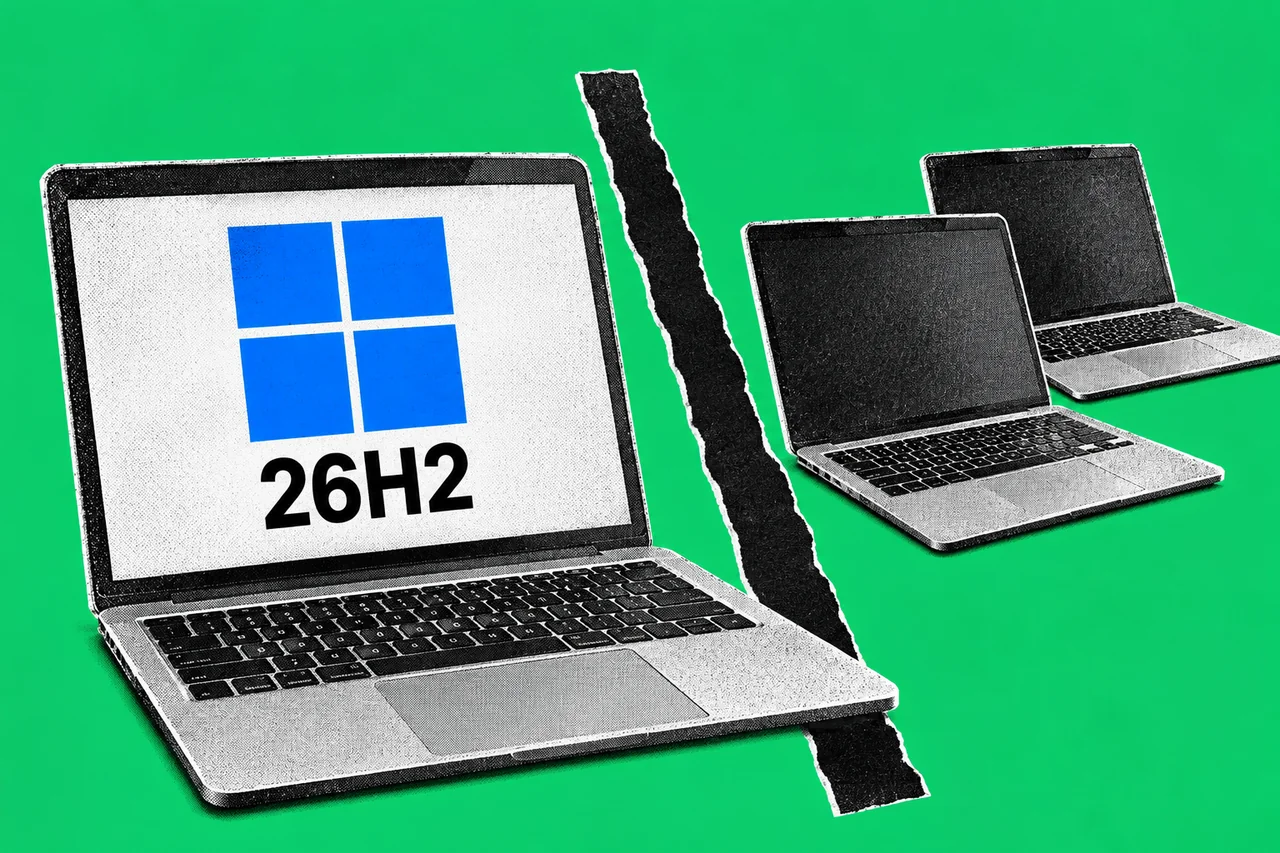
Windows 11’s next annual update has arrived with a smaller installation job. That is welcome news for an office manager looking after a handful of PCs. It is not a reason to update every machine before lunch.
Microsoft announced version 26H2 on 29 September. Eligible computers running 24H2 or 25H2 can move across through an enablement package: a lightweight update that switches on components already delivered through monthly servicing. The company recommends businesses start with targeted deployments, checking their applications and everyday work before expanding.
Our recommendation for a small Australian team is the same, in less corporate language: nominate a test computer and make somebody responsible for deciding when the others follow. An update is successful when the work still gets done, not simply when the desktop reappears.
A quick install still needs a rollout plan
Microsoft’s Windows message center says availability will widen over the next few months. The first group includes eligible 24H2 and 25H2 users who have opted to receive the latest updates as soon as they are available. Some machines can be held back for compatibility reasons.
For Australian businesses, that means checking what Windows Update actually offers on each eligible PC. The announcement gives no separate Australian rollout date or promise that every office computer can install it immediately.
A practical pilot could be one ordinary staff laptop with the same software and accessories as the rest of the team. That is an illustrative starting point, not a prescribed Microsoft minimum. Choose the test for what it represents, rather than grabbing a spare machine nobody uses.
Run through the tasks that earn the business its money: opening the booking system, sending an invoice, printing a label, joining a customer call or connecting through the usual remote-access tool. These are suggested checks, not a list of applications known to fail on 26H2. Record what was tested and who signed it off. A vague “seems fine” is not much help when the next employee reports a problem.
Don’t treat a hold as a broken download
Microsoft’s safeguard guidance explains why Windows sometimes withholds a feature update. A known compatibility problem can lead to a hold while the company investigates and validates a fix. The protection can cover serious consequences, including lost functionality or connectivity.
Microsoft advises against manually updating a held device before the issue is fixed and the hold released. For an owner without an internal IT team, the sensible response is to ask the IT provider what the hold means for that machine. Do not turn a routine upgrade into an experiment on the reception desk’s only working PC.
Holds operate through Windows Update. Businesses deploying through other channels still need to check known issues; a different installation method is not evidence that a device is unaffected.
Check the support date, not just the version number
Microsoft says the 26H2 release carries 24 months of support for Home and Pro editions and 36 months for Enterprise and Education. Those are release lifecycles, not a fresh two- or three-year clock starting whenever an employee gets around to installing it. Microsoft’s lifecycle register records fixed start and end dates by version.
Keep an inventory of what each computer actually runs and let the person managing it confirm the applicable support schedule. If the discussion turns to replacement hardware, treat that as a separate decision: our Googlebook Australia report looks at why a new laptop launch is not automatically a ready-made business fleet.
The decision is less dramatic than replacing the office fleet. Make the upgrade a controlled maintenance job, with a named owner and a tested first group. Then move the rest when the evidence is good enough.
Checklist
- Name the rollout owner. Have the office manager or IT provider coordinate the pilot and approve wider installation.
- Check each PC’s eligibility. Ask that owner to confirm its Windows version, edition and the update offered through its managed update route.
- Test the work, not only the restart. On a representative pilot PC, check the business’s essential applications and accessories before approving the remaining machines.
- Respect safeguard holds. Ask the IT provider to investigate any compatibility hold and wait for the relevant fix rather than forcing an installation.
- Record the support schedule. Have the device owner check Microsoft’s lifecycle listing for the installed edition and version; do not count from the installation day.
Tick items as you go. Your ticks stay in this browser.