SPF, DKIM and DMARC explained: the email settings that help your invoices reach the inbox
What SPF, DKIM and DMARC do, what Gmail, Yahoo and Outlook require, what Australia's cyber agency recommends, and how to set them up without breaking email.
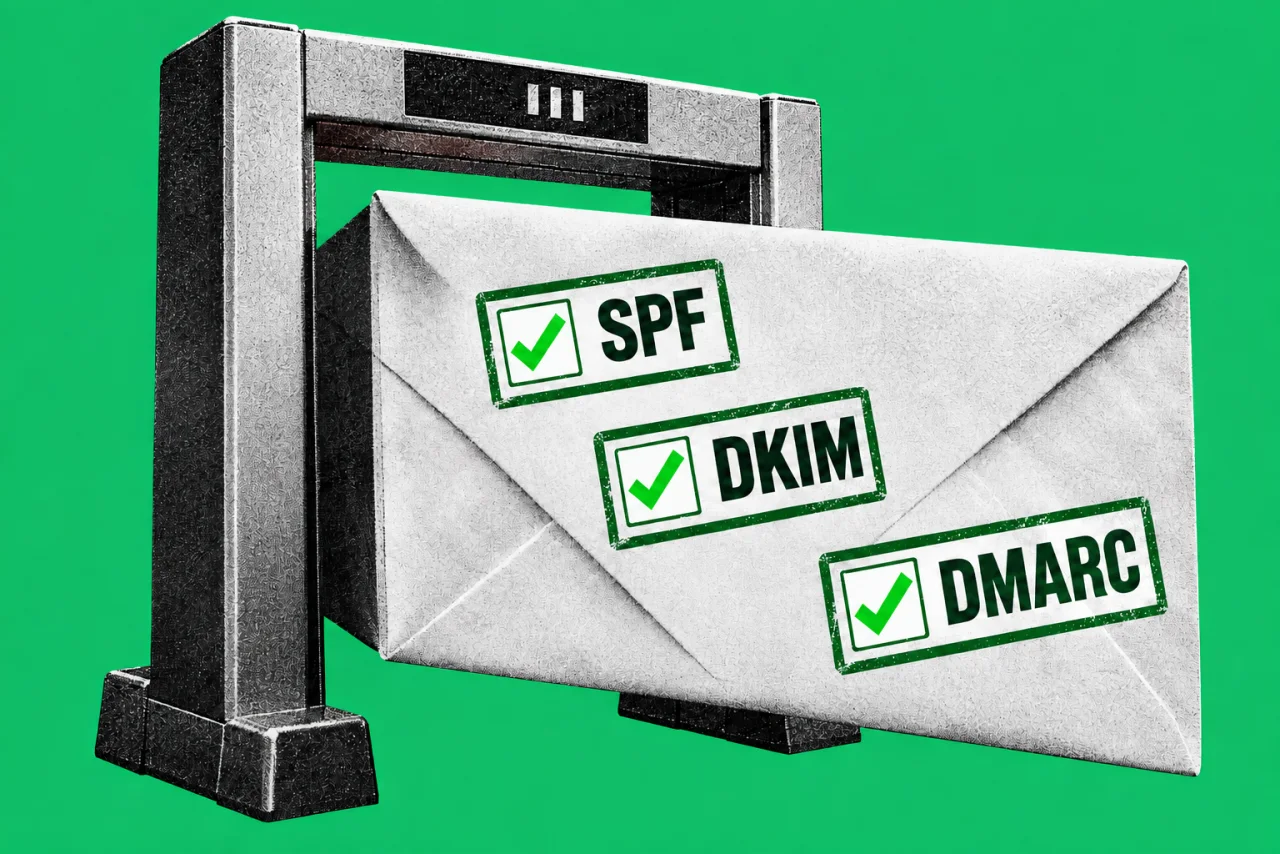
Three records in your domain’s settings decide whether your quotes, invoices and newsletters land in the inbox, the spam folder or nowhere. They also make it harder for scammers to send email that looks like it came from your business. If nobody in your business can say whether you have all three, it’s worth finding out.
The big consumer mailbox providers now enforce them. Google, Yahoo and Microsoft can reject or junk email that fails their checks, and Australia’s cyber security agency tells organisations to go further.
The three records in plain English
All three live in your domain’s DNS, the settings held by whoever hosts your domain name.
- SPF (Sender Policy Framework) is a list of the mail servers allowed to send email for your domain. In Google’s words, it “prevents spammers from sending unauthorized messages that appear to be from your domain.”
- DKIM (DomainKeys Identified Mail) adds a digital signature to each message. Receiving servers use it “to verify that the domain owner actually sent the message”, and Microsoft says it also shows the message “remains unaltered in transit”.
- DMARC ties the two together. It “tells receiving servers what to do with your messages that don’t pass SPF or DKIM”, such as deliver them anyway, send them to spam or reject them, and where to send reports about your mail.
Microsoft’s view is blunt: “Anything less than all of the email authentication methods results in substandard protection.”
What the mailbox providers require
These are the providers’ own rules. They’re not laws, but they’re enforced by whether your mail gets delivered.
| Provider | Who it applies to | Authentication required | DMARC | Enforced since |
|---|---|---|---|---|
| Gmail (personal accounts) | All senders | SPF or DKIM | Not required | February 2024; stricter from November 2025 |
| Gmail (personal accounts) | Bulk senders: close to 5,000 or more messages a day | SPF and DKIM | At least p=none, aligned | February 2024; stricter from November 2025 |
| Yahoo and AOL | All senders | SPF or DKIM | Not required | February 2024 |
| Yahoo and AOL | Bulk senders (no number given) | SPF and DKIM | At least p=none, must pass | February 2024 |
| Outlook (Microsoft) | Domains sending more than 5,000 emails a day | SPF and DKIM must pass | At least p=none, aligned | 5 May 2025 |
A few details matter for smaller senders:
- Gmail’s rules cover mail to personal Gmail addresses, those ending in @gmail.com or @googlemail.com. They don’t apply to mail sent to businesses that use Google Workspace. Google says a sender that reaches the bulk threshold “at least once” is “permanently considered” a bulk sender, and mail from the same primary domain counts together.
- Gmail tightened enforcement in November 2025. Google says mail that doesn’t meet the requirements “will experience disruptions, including temporary and permanent rejections”. Google also says it’s “likely” that alignment with both SPF and DKIM will eventually be required.
- Outlook rejects rather than junks. Microsoft first said failing mail would go to Junk, then updated its announcement on 29 April 2025 to say failing messages would be rejected from 5 May, with the error “550; 5.7.515 Access denied”. Parts of the announcement still describe the earlier Junk plan, but the dated update is the later statement. Adding yourself to a customer’s safe senders list doesn’t help: Microsoft says the “Safe Sender list won’t be honored.”
- Marketing email needs easy unsubscribes. Gmail requires one-click unsubscribe for bulk marketing mail and recommends acting on requests within 48 hours. Yahoo says to honour them within 2 days. Transactional email, such as password resets and reservation confirmations in Google’s examples, is excluded from Gmail’s one-click rule.
On our reading, most small businesses aren’t bulk senders to any one provider, so only the “all senders” row applies to them directly. But a business whose newsletter reaches close to 5,000 Gmail addresses in a day can cross Gmail’s threshold once and stay classed as bulk. And even below the thresholds, Gmail and Yahoo require every sender to use SPF or DKIM.
What Australia’s cyber agency recommends
The Australian Signals Directorate’s Australian Cyber Security Centre (ACSC) goes further than the providers. Its guidance How to combat fake emails, written for businesses of all sizes and last updated in 2021, says “DMARC is critical – implement it now irrespective of your existing controls”, “even if only in a monitoring mode (‘p=none’) configuration”. The end goal is a DMARC record that “either quarantines or rejects 100 percent of email that fails SPF and DKIM checks”. For domains you own but never send email from, the ACSC recommends records that say so, so scammers can’t use them either.
Its advice on preventing business email compromise tells small businesses to “have a discussion with your service provider” about adding all three records, and to contact your DNS host too if that’s a separate company.
This is guidance, not law. On our reading, the providers’ rules are the hard requirement for getting mail delivered, and the ACSC’s advice is the standard for making it harder for scammers to send email that appears to come from your domain. Our guide to checking an invoice before you pay it covers the other side: checking what arrives.
Where small businesses trip up
- Services that send as you. Your newsletter platform, website contact form, booking system and accounting software may all send email from your domain. Google says your SPF record “should include all email senders for your domain”, or their messages “are more likely to be marked as spam”. The ACSC suggests authorising marketing email providers with DKIM rather than SPF, using “a separate DKIM selector and key pair for each ESP” (email service provider). Microsoft suggests sending bulk marketing from a subdomain.
- One SPF record, ten lookups. Microsoft says “only one SPF record is allowed per domain”, and if checking it takes more than 10 DNS lookups, “the message fails SPF”. Adding every service’s include line to one record can break it.
- Microsoft 365 custom domains. Microsoft 365’s setup process has you add an SPF record, but Microsoft says “no DKIM signing occurs for outbound mail from custom domains” until you configure it, and DMARC isn’t created for you.
- Google Workspace. An admin generates a DKIM key in the Admin console, publishes it in DNS and clicks Start authentication. Google says you must wait 24 to 72 hours after turning on Gmail before you can get the key. SPF and DMARC are added at your DNS host.
How to roll it out without breaking email
Google, Microsoft and the ACSC agree on the order. Start DMARC in monitoring mode, read the reports, then tighten it.
- List everything that sends email as your domain. Staff mailboxes, newsletters, forms, invoicing, bookings and your website.
- Fix SPF. One record that covers every sender, within the 10-lookup limit.
- Turn on DKIM for your mailbox provider and each sending service that supports it.
- Publish DMARC at p=none with a reporting address (the rua tag, which Google says to “always include”). Google says SPF and DKIM should be authenticating for at least 48 hours before you turn DMARC on.
- Read the reports. They show which services are sending as you and whether they pass. Google suggests at least a week at none.
- Tighten gradually. Microsoft advises “none → quarantine → reject”. Google suggests applying quarantine to a small percentage first, for example 10% for a small organisation.
Checklist
- Ask your IT provider or domain host whether you have SPF, DKIM and DMARC for every domain you send from.
- List every service that emails customers as you, and check it’s covered.
- Check Microsoft 365 DKIM is set up for your own domain, not just the onmicrosoft.com one.
- Check Google Workspace DKIM shows as authenticating in the Admin console.
- Publish DMARC at p=none with reporting, then review the reports.
- Plan the move to quarantine, then reject, as the ACSC recommends.
- Protect unused domains with records that say they don’t send email.
- If you send newsletters, check your platform handles one-click unsubscribe.
Tick items as you go. Your ticks stay in this browser.