
Myth or fact: closing apps saves your phone’s battery
Swiping away every app feels tidy, but Apple and Google both say you don’t need to. Here’s when closing an app does help, and what actually saves battery.
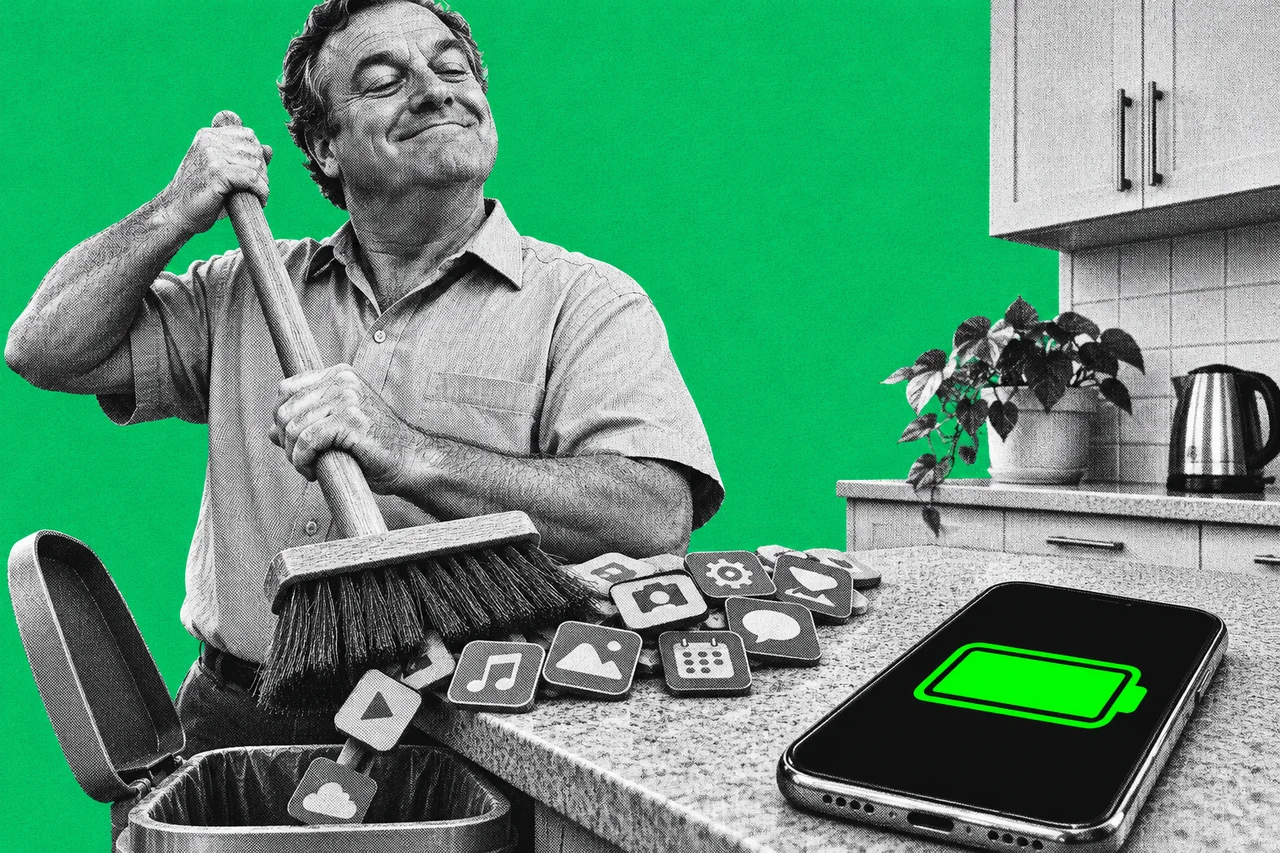
Plenty of us do it every night: open the app switcher and flick every app off the top of the screen. It feels like turning off the lights.
Verdict: mostly myth. Apple says closing all your apps makes no difference, and Google says you won’t run out of battery if you don’t. Closing one app does help in one case: when it has frozen or is misbehaving.
What Apple says: closing everything changes nothing
Apple’s support page on closing iPhone apps is blunt. “You should only close an app if it’s unresponsive.”
It goes further. If your iPhone seems slow or the battery drains too quickly, “closing all of your apps does not impact your device’s overall performance”. Recently used apps only use power “when they’re active or when they’re performing specific background tasks or services.”
What Google says: Android manages it for you
Google’s Android Help shows how to close apps, then adds a tip: “Even if you don’t close apps, you won’t run out of memory or battery. Android manages these automatically.”
Its main battery help page doesn’t tell you to close apps at all. It suggests restricting apps with high battery use and turning on Adaptive Battery, among other things.
Why the apps in your switcher aren’t running
The app switcher looks like a row of open apps. Most of them aren’t doing anything.
On an iPhone, Apple says some apps run for a short time after you leave them, then move to a suspended state. Suspended apps “aren’t actively in use, open or taking up system resources.”
Android works on the same idea. Google’s developer guide calls these cached processes. Apps should stop all work while cached, and the system closes them itself when it needs the memory.
Closing apps can even cost you something. Apple notes that an app you close “may not be able to run or check for new content” before you open it again. So it may need a moment to refresh when you reopen it.
When closing an app is the right move
There’s a reason the myth sticks: sometimes one app really is the problem.
- It’s frozen. Apple’s advice for an unresponsive app is to close it, then open it again.
- It’s draining the battery. Google’s Pixel help sets out steps. First, restrict the app’s battery use. Next, force-stop it in Settings > Apps. Google warns that force-stopping some essential apps or services will stop your phone working correctly.
Samsung’s Australian help takes a slightly different line. It lists background apps as one cause of drain. Device optimisation, found under Device care, “removes unnecessary files and background apps, helping to reduce battery consumption”. That’s a tool you run, not a reason to swipe everything away.
What actually saves battery
The makers’ own battery advice points to settings, not swiping.
Find the culprit. On an iPhone, go to Settings > Battery. Apple’s battery page shows which apps have used the most battery today. On a Pixel, go to Settings > Battery > Battery usage > View by apps.
Cut background activity. Apple’s Low Power Mode turns off Background App Refresh and reduces brightness, among other things. On Android, Battery Saver “limits or turns off background activity”, and Adaptive Battery learns how you use your apps and optimises battery use.
Help your signal. Apple says your phone uses more power on a weak signal, and that Wi-Fi uses less battery than mobile networks.
Keep it cool. Google says your battery drains much faster when it’s hot, even when you’re not using it.
For more phone settings worth a look, see our eight Android settings to change before you use it for work.
Checklist
- Stop swiping away every app. Apple and Google both say you don’t need to close apps routinely.
- Close and reopen an app only when it freezes. That’s the case Apple’s support page gives for closing one.
- Check which apps use the most battery. On an iPhone, go to Settings > Battery. On a Pixel, go to Settings > Battery > Battery usage > View by apps.
- Force-stop a draining Android app only after restricting it. Use Settings > Apps, and don’t force-stop essential system apps.
- Turn on Low Power Mode or Battery Saver when you need the battery to last. Both cut background activity.
- Leave Adaptive Battery switched on. Google’s Pixel help says to keep it on for the best battery life.
- Use Wi-Fi when you can. Apple says Wi-Fi uses less battery than mobile networks.
Tick items as you go. Your ticks stay in this browser.