
Eight Android settings to change before you use it for work
A work phone holds client emails, calls and logins. Eight Android settings that protect it, and lock it down if it’s lost, with Google’s steps.
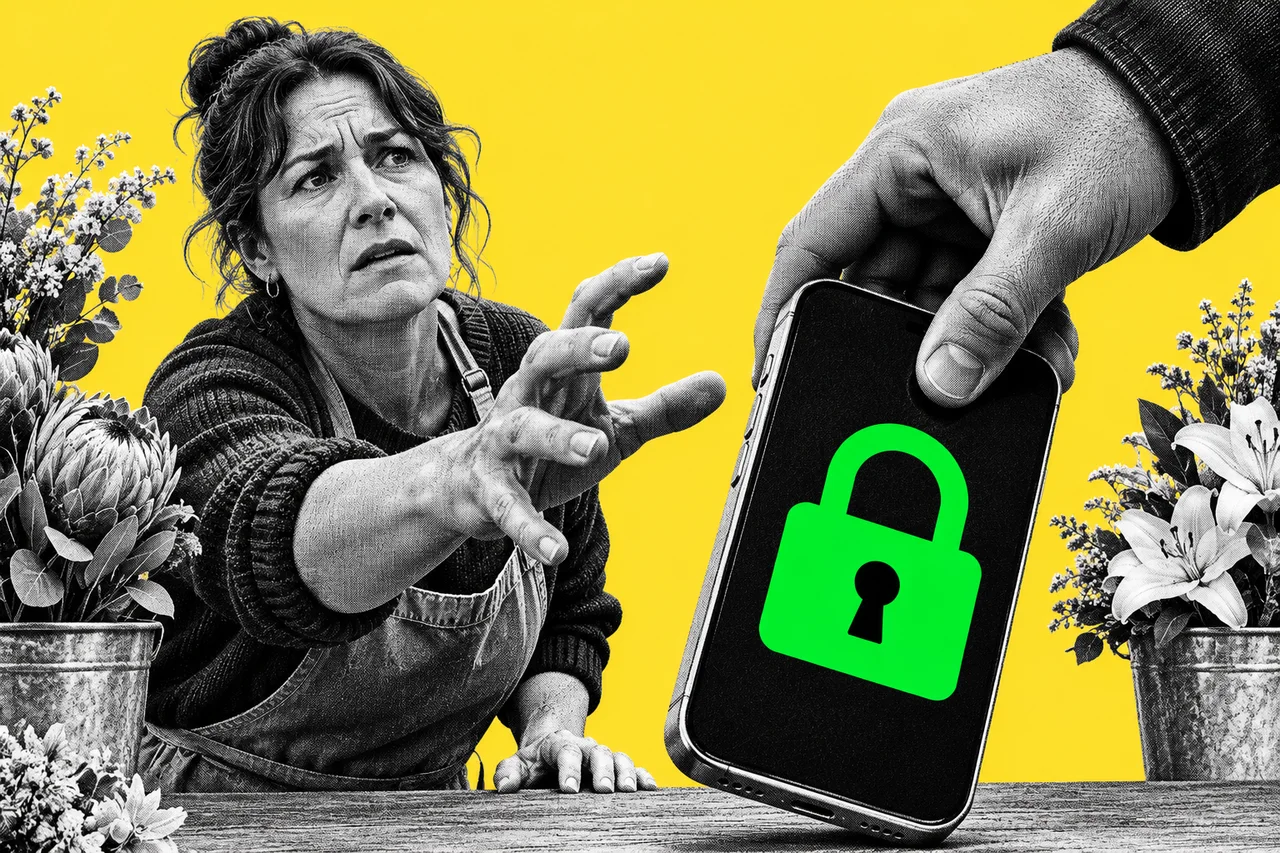
Your work phone knows a lot. It has your client emails, your calls, your banking app and the logins to half your business. Leave it on a café table and all of that walks off with it.
These eight settings make a lost or stolen Android phone far less useful to whoever has it. Each one comes from Google’s own help pages. Menus differ a little between phone brands, so if a name doesn’t match, search for it in the Settings app.
Got an iPhone instead? We did the same for iPhone.
1. A real screen lock
Everything else on this list leans on it. Without a screen lock, anyone holding the phone is in.
Open Settings, tap Security, then Screen lock. Choose a PIN, pattern or password.
Google recommends a six-digit PIN rather than four, and says a strong password is the most secure option. A PIN, pattern or password also encrypts your phone’s backups.
2. Find Hub, so you can lock or wipe it from afar
Find Hub lets you ring, locate, lock and erase a lost phone.
Go to Settings > Security > Find Hub and check Allow device to be located is on. Some steps only work on Android 14 and up.
If the phone goes missing, sign in at android.com/find or open the Find Hub app on another device. Mark as lost locks it and lets you put a contact number on the screen. Factory reset erases it. Google warns that reset permanently deletes everything, so treat it as the last step.
These only work while the phone has power and a mobile or Wi-Fi connection.
3. 2-Step Verification on your Google Account
If someone gets your Google password, this stops them signing in. Google’s Find Hub page also says you need it turned on to lock or erase your phone remotely.
On a computer, go to myaccount.google.com, open Security & sign-in, and under How you sign in to Google choose Turn on 2-Step Verification.
Google recommends its own Google prompts as the second step. They pop up on Android phones signed in to your account. Save your backup codes somewhere safe and never share them. Our guide to passkeys covers the next step up.
On a work account run through Google Workspace, your admin may control this. Ask them.
4. Updates: check once, then let them install
Google says most system updates and security patches install automatically. It’s still worth checking a new phone is current.
Go to Settings > System > Software updates. Google suggests connecting to Wi-Fi and charging to at least 75% first.
Update schedules vary by phone maker and carrier, and older phones can’t always run newer Android versions.
5. Google Play Protect
Play Protect checks your apps for harmful behaviour. Google says it’s on by default and recommends you always keep it on.
To check, open the Google Play Store app, tap your profile icon, then Play Protect > Settings, and make sure Scan apps with Play Protect is on.
6. Who can see your location, camera and microphone
Apps ask for access to these, and it’s easy to tap yes to everything. You can take it back.
Go to Settings > Security & Privacy > Privacy > Permission manager and tap a permission, such as location. You’ll see every app that has it. For location, the options include Allow only while using the app and Ask every time, which keep an app from tracking you in the background.
To cut off camera or microphone access for the whole phone, use Privacy controls on the same screen. For apps you’ve stopped using, open the app in Settings > Apps and turn on Pause app activity if unused.
7. Hide sensitive notifications on the lock screen
A client’s message or a sign-in code can show on your lock screen for anyone to read.
Go to Settings > Notifications > Notifications on lock screen, and turn off Show sensitive content. On some phones it’s under Settings > Apps & notifications > Notifications > Lock screen.
8. Theft protection
Android has several theft protections. These three matter most when a phone is snatched.
Go to Settings > Google > All services > Personal & device safety > Theft protection and switch on Theft Detection Lock.
- Theft Detection Lock uses AI, your phone’s motion sensors, Wi-Fi and Bluetooth to spot a snatch, then locks the screen. It may not trigger every time, for example while the phone has a stable Wi-Fi or Bluetooth connection. If the setting is greyed out, your phone doesn’t support it.
- Remote Lock lets you lock the phone from android.com/lock. It needs a screen lock, an active SIM, a verified number and Find Hub on.
- Failed Authentication Lock is on by default. It needs a screen lock, which brings you back to setting one.
Google says these features aren’t supported on Android Go devices, tablets and wearables, and support varies by model. Some steps need Android 15.
Checklist
- Set a six-digit PIN or a password. Go to Settings > Security > Screen lock.
- Turn on Find Hub. Check Allow device to be located is on in Settings > Security > Find Hub. If the phone goes missing, go to android.com/find.
- Turn on 2-Step Verification. Go to myaccount.google.com > Security & sign-in > How you sign in to Google > Turn on 2-Step Verification, then save your backup codes somewhere safe.
- Check for updates. Go to Settings > System > Software updates on Wi-Fi, with the battery charged to at least 75%.
- Confirm Play Protect is scanning. In the Play Store, tap your profile icon, then Play Protect > Settings, and check Scan apps with Play Protect is on.
- Review location access. Go to Settings > Security & Privacy > Privacy > Permission manager > Location and switch apps that don’t need it in the background to Allow only while using the app or Ask every time.
- Hide sensitive content on the lock screen. Go to Settings > Notifications > Notifications on lock screen and turn off Show sensitive content.
- Turn on Theft Detection Lock. Go to Settings > Google > All services > Personal & device safety > Theft protection and switch on Theft Detection Lock.
Tick items as you go. Your ticks stay in this browser.