APIs: the kitchen window your business apps order through
APIs let accounting, payment and booking software swap data. A café kitchen window shows how they work, and how to cut off old connections.
Every time you click “Connect” to link two apps, something has to carry information between them. Your sales flow into your accounts. Your bookings land in your calendar. Your website orders reach your stock list.
That something is usually an API. Here’s what it is, if software were a café.
The kitchen window
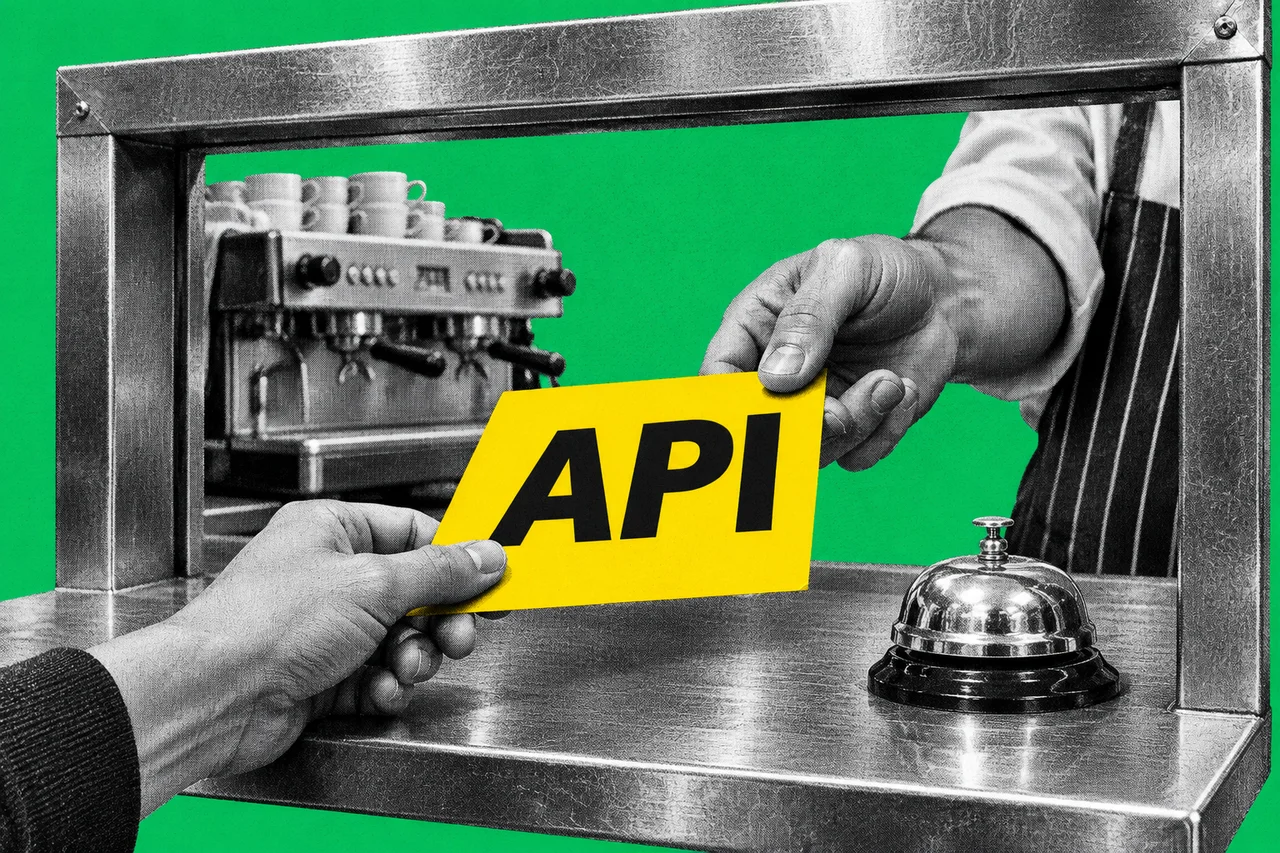
A café has a kitchen. Customers don’t walk into it, open the fridge and cook their own eggs. They order at the counter, from a menu, and the food comes out through a window.
An API is that window. MDN, the web developers’ reference, describes an API as a set of features and rules inside a program that lets other software interact with it. It’s a contract: here’s what you can ask for, and here’s how to ask.
Your accounting software is a kitchen. So are your payment system and your booking tool. Each has a window where other apps can place orders, such as “send me today’s invoices” or “add this payment”. The app on the other side never gets the keys to the kitchen. It only gets what’s on the menu.
The menu, the order and the plate
Most modern APIs work over the web. An app sends a request, a bit like an order docket, and gets a response back, like a plate through the window. Google says all its Cloud APIs offer a simple JSON interface over the web. JSON is just a tidy text format both sides can read.
That’s why apps from different companies can work together. They don’t need to share a kitchen. They only need to read the same menu.
Who’s allowed to order
A café window doesn’t serve just anyone. Apps prove who they are in a few ways.
An API key is like a supplier’s account number. Google says a standard API key links a request to a project for billing and usage limits, but doesn’t identify a person. It says to keep keys secure, and warns that unrestricted keys are insecure.
A token is like a wristband for a delivery driver. When you click “Connect” and approve an app, you’re usually using a system called OAuth. Google explains that the app asks Google for an access token, and Google handles the sign-in and your consent. The app then shows that token at the window.
The wristband only opens certain doors. Google calls these limits scopes: they control what the token lets the app see and do. And wristbands expire. Access tokens have limited lifetimes, and apps can use a separate refresh token to get new ones.
Why the connection never seems to end
Here’s what surprises owners. You approved an app once, maybe years ago, and it’s still connected.
Xero shows how. Its access tokens expire after 30 minutes. But a connected app can renew them on its own, without you doing anything. Xero says unused refresh tokens expire after 60 days. An app that checks in regularly never reaches that limit, so the connection stays open until someone closes it.
So a connection you’ve forgotten about can keep working in the background.
“Your order’s ready” instead of “Is it ready yet?”
Some apps don’t wait at the window asking every few seconds. They hand over a buzzer.
That’s a webhook. Square describes one as a subscription to a list of events, such as payments. When one happens, Square sends the details to the address you gave it. Shopify can tell an app when a new order is created. It calls webhooks a more efficient alternative to checking over and over.
Buzzers can fail, though. Shopify says delivery isn’t always guaranteed, so apps should also check in now and then to catch anything missed.
Even the kitchen has limits
A busy kitchen can only take so many orders at once. APIs set limits too.
Xero lets a connected app make up to 60 calls a minute to each business it’s linked to. No more than five can run at once. The daily cap is 5,000 calls, or 1,000 for apps on Xero’s starter tier. Go over, and Xero sends back a “too many requests” message with how many seconds to wait.
That’s why a big sync can sometimes lag. It’s the kitchen pacing the orders, not your app breaking.
Taking the wristbands back
Every connection is a door you’ve opened, so it’s worth knowing who still has a wristband.
In Xero, the person who approved a connection can disconnect it from the Connected Apps page in the Xero app.
In a Google Account, Google says to go to myaccount.google.com/linkedapps and select Access to your Google Account. Choose the app, select See details to check what it can reach, then Remove access and Confirm. Google warns that some features in that app may stop working.
The same Google page lists apps you sign in to with Google. Stopping “Sign in with Google” there doesn’t delete your data in the other app.
If you’re not sure what an app does, our story on Xero’s connected app for Gemini shows the kind of access a connection can carry.
Checklist
- List the apps connected to your accounting software. In Xero, open the Connected Apps page and note each app.
- Disconnect any app nobody uses. In Xero, the person who approved the connection can disconnect it from the Connected Apps page.
- Check what can reach your Google Account. Go to myaccount.google.com/linkedapps, select Access to your Google Account, and open See details for each app.
- Remove Google access you don’t recognise. Select Remove access, then Confirm. Some of that app’s features may stop working.
- Keep any API keys secure. If a web developer gave you an API key, store it like a password. Ask them to restrict it, because Google says unrestricted keys are insecure.
- Ask support whether a slow sync is hitting usage limits. If a big import lags, check with the app’s support before assuming it’s broken.
Tick items as you go. Your ticks stay in this browser.