
Free Copilot Chat now has limits Microsoft won’t publish
Microsoft is adding unpublished fair-use limits to Copilot Chat for staff without a paid Copilot licence. What your team will see, and the settings to check.
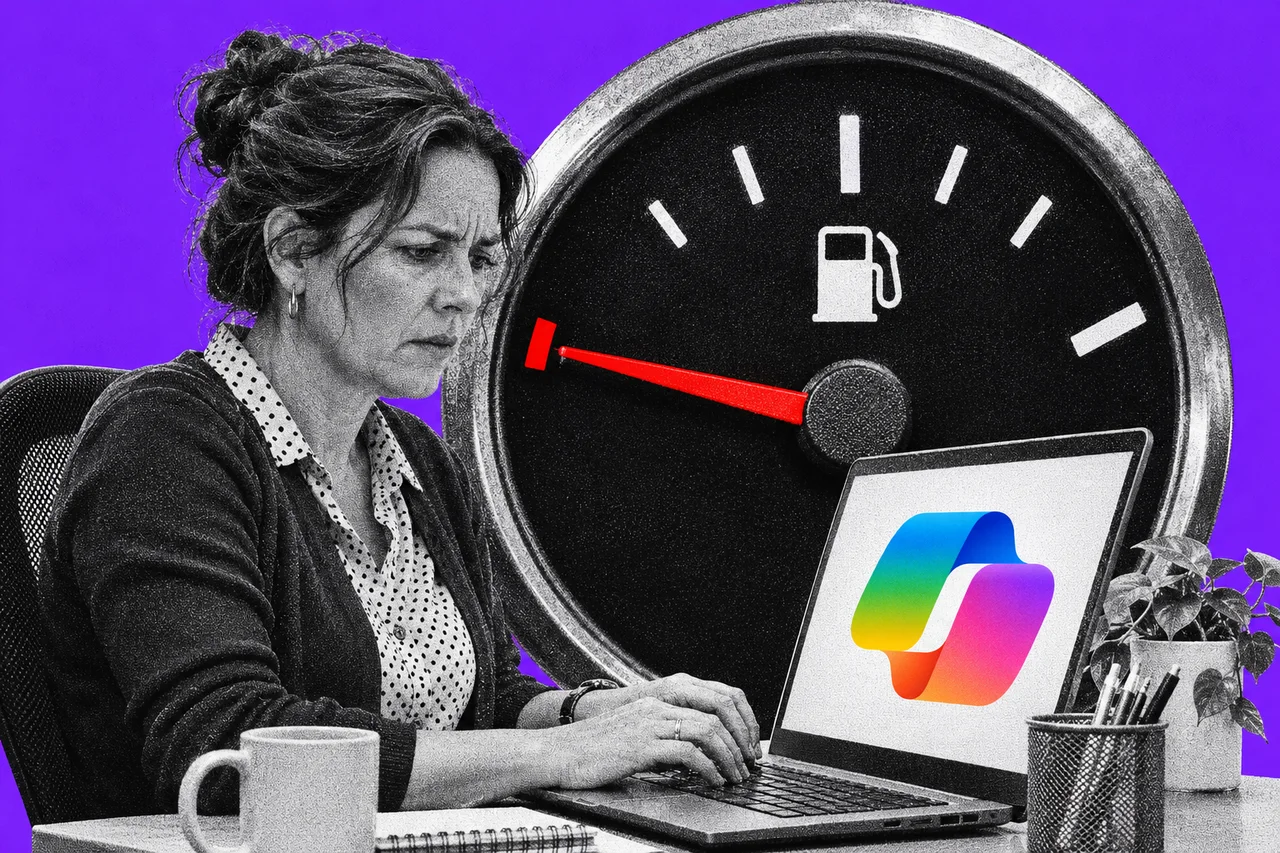
The free Copilot Chat in your Microsoft 365 account can now run out partway through the day. When it does, it may point you to the paid version.
Microsoft told its resellers on 4 November that it’s adding “fair use limits” to more Copilot Chat features. They apply to anyone without a paid Microsoft 365 Copilot licence. The partner announcement says the rollout began on 2 November for organisations with 2,000 or fewer Microsoft 365 seats. Larger organisations follow from 9 November.
So if your business has 2,000 or fewer seats, the rollout has already started. The limits apply on the web, desktop and mobile apps.
Copilot Chat stays, with a meter you can’t see
Copilot Chat remains included in qualifying Microsoft 365 business subscriptions, and nobody has to do anything to keep it. Without the paid add-on, it can answer questions using the web and files you upload, but it can’t search your email, meetings and chats.
Some features, such as image generation, already had limits. Now more of Copilot Chat does.
What’s unusual is how the limits work:
- No numbers. Microsoft says it doesn’t publish or share specific limits, because they can vary.
- They move. Limits can vary through the day and depend on service conditions.
- Admins are in the dark too. Microsoft sets the limits, and admins can’t see or adjust them.
When someone hits a limit, Copilot shows a notice saying when the feature will be available again. Work already in progress isn’t cut off. Microsoft says reaching a limit is “expected behavior”, not a fault.
The notice comes with a shop button
In most organisations, the limit notice includes an option to upgrade. A staff member can use it to ask their admin for a Microsoft 365 Copilot licence. The admin approves or rejects the request in the Microsoft 365 admin centre.
If your organisation allows staff to buy software themselves, they may see an option to buy a licence directly.
Microsoft is open about the sales angle with its partners. The announcement says hitting a limit “might indicate interest” in paid Copilot and “creates a natural opening” for resellers to start a conversation. Resellers get a dashboard view showing which customers have users reaching the limits. So if your IT provider brings up Copilot soon, that may be why.
For the paid licence, Microsoft’s Australian business page lists Microsoft 365 Copilot Business from A$31.40 a user a month, paid yearly, before GST. A discount to A$26.91 applies for the first year on orders between 1 July and 31 December 2026. It needs an annual commitment and an eligible Microsoft 365 business plan.
Licensed users get priority access, which Microsoft describes as faster and more reliable, plus Copilot working across their email, meetings, chats and files.
Check who can buy before someone does
Self-service purchases are allowed by default for new products, and they’re controlled one product at a time. A Global Administrator can change them in the admin centre. Go to Settings > Org settings, open the Services tab and select Self-service trials and purchases. Each product can be set to Allow, Allow for trials only or Do not allow. Changes can take up to 72 hours.
If you block purchases, licence requests land under Billing > Licenses, on the Requests tab.
Before paying, be clear on what the extra money buys. Our comparison of ChatGPT, Copilot and Gemini business plans sets out what each includes. Copilot Business also has usage-based charges for some advanced features.
Checklist
- Tell staff what the Copilot Chat limit notice means. It isn’t an error: the feature comes back later, and the notice says when.
- Decide who can buy Copilot licences. In the Microsoft 365 admin centre, open Settings > Org settings > Services > Self-service trials and purchases. Set each Copilot product to Allow, Allow for trials only or Do not allow.
- Name who approves licence requests. Check the Requests tab under Billing > Licenses, and agree who says yes or no.
- Brief your help desk or IT provider. Microsoft recommends admins tell help desk staff about the limit notices.
- Get a written quote before you buy the paid add-on. Confirm the per-user price, GST, the annual commitment and what happens when the first-year discount ends.
Tick items as you go. Your ticks stay in this browser.