Canva now lets you switch off its generative AI tools
Canva Free and Pro users can now hide Canva’s generative AI tools with one switch, and see fewer AI-made templates. Here’s where to find both.
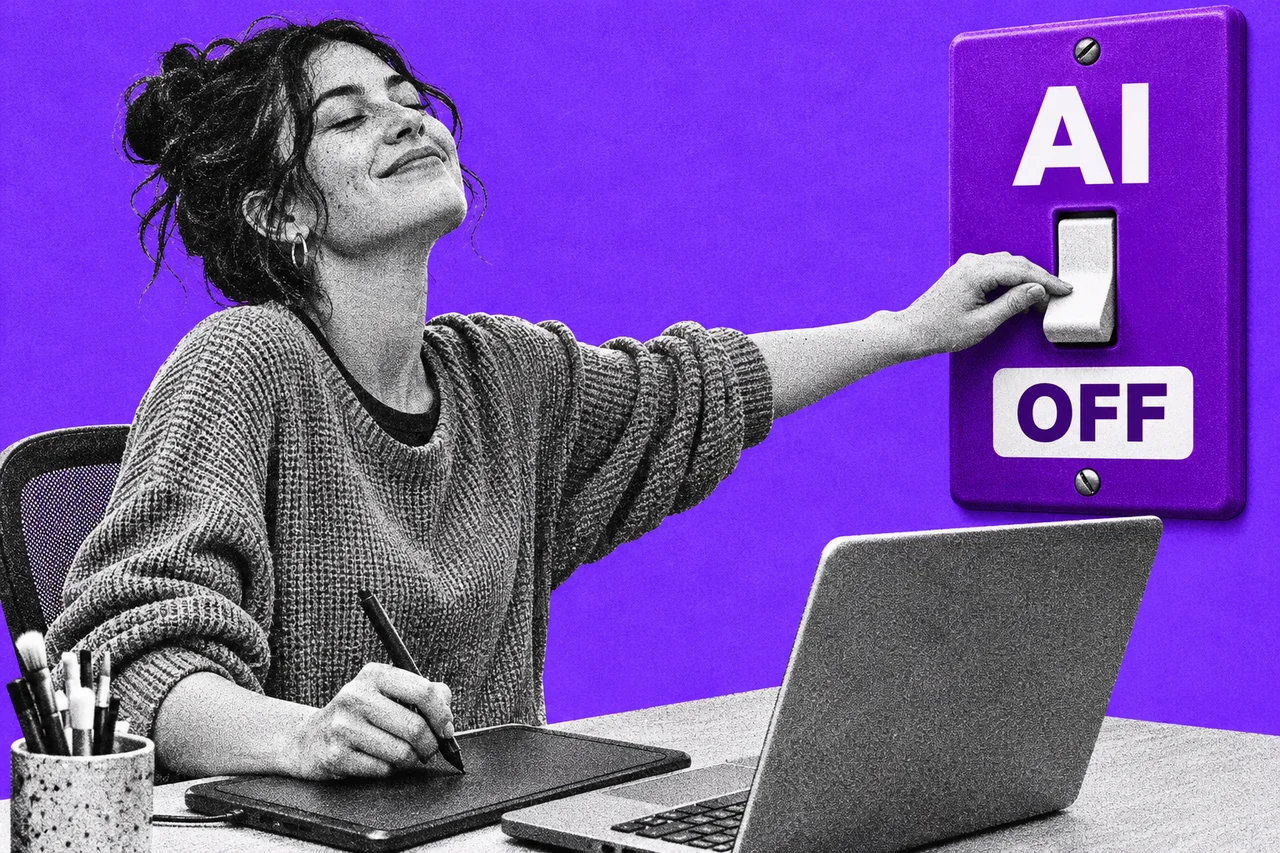
If Canva keeps offering to write, generate or “magic” your design when you just want to make it yourself, you can now make it stop.
Canva has launched two “AI Controls” for everyone on Canva Free and Canva Pro, at no extra cost. One switch hides its generative AI features across the app. The other shows you fewer AI-made templates and graphics in search and recommendations.
Canva says it heard how important it is to make work by real people easier to find. Its community has used Canva’s AI tools more than 38 billion times.
One switch hides most of the AI
The main switch is in Settings. Click your profile picture, choose Settings, then Permissions under “Controls and permissions”. Turn off Enable generative AI features. Canva’s help page gives the same steps for desktop and mobile, and you can switch it back on any time.
Generative AI is on by default. Turning it off makes a long list of tools unavailable, according to Canva’s help page, including:
- Canva AI, Magic Write and Magic Design
- Magic Edit, Magic Media, Magic Layers and Dream Lab
- Canva Code, AI Shapes and AI Charts
- Translate designs, Image to Video and Canva’s AI music and sound effects
Canva says new generative AI features will follow the setting as they arrive.
Two photo tools stay on
Background Remover and Magic Grab still work with the switch off. Canva calls them assistive tools because they only edit what’s already in your image. Using them won’t add metadata marking your design as AI-generated, so they shouldn’t trigger the “AI” labels some social platforms add.
So you can cut out a background without your post being tagged as AI art.
A second setting for fewer AI templates
The second control is somewhere else. Click your profile picture, choose Your account, then AI personalization, and turn off AI-generated content.
Canva says a small part of its library is AI-generated, such as abstract backgrounds and illustrated graphics, and those items are tagged in their metadata. With the setting off, you’ll see fewer of them in search results and recommendations.
It’s a filter, not a block. Some AI-generated items may still appear, and it doesn’t change designs you’ve already made. It doesn’t affect Brand Templates, searches of your own uploads, Canva AI or third-party apps.
Canva pays creators each time their work is used in a design, so the human-made templates you’ll see more of earn their makers money.
Rolling out gradually
Canva’s help page says the switches are rolling out gradually, so they might not be in your account yet. The setting also won’t carry over if your account moves between Free or Pro and a Teams, Enterprise or Education plan.
Those plans already have their own controls. Owners and admins on Canva Teams, Business, Enterprise and Education choose who can access each AI feature under Settings, then Permissions, in the “Magic and AI” section. Canva says those changes apply to new designs.
Canva has been building more of its own AI lately, including its own image model, Craft. The new switch turns off Dream Lab, where Craft lives, along with the rest of Canva’s generative tools.
Checklist
- Find the main switch. In Canva, click your profile picture, then Settings, then Permissions, and turn off “Enable generative AI features”. Background Remover and Magic Grab keep working.
- Cut back AI-made templates. Click your profile picture, then Your account, then AI personalization, and turn off “AI-generated content”.
- Look again later if it’s missing. Canva is rolling both switches out gradually to Free and Pro accounts.
- Check your AI settings if you change plans. The switch doesn’t carry over between Free or Pro and Teams, Enterprise or Education, and on team plans an admin controls AI access.
- Use admin controls for a team. Owners and admins on Teams, Business, Enterprise or Education go to Settings, then Permissions, then “Magic and AI” to choose who can access each feature.
Tick items as you go. Your ticks stay in this browser.