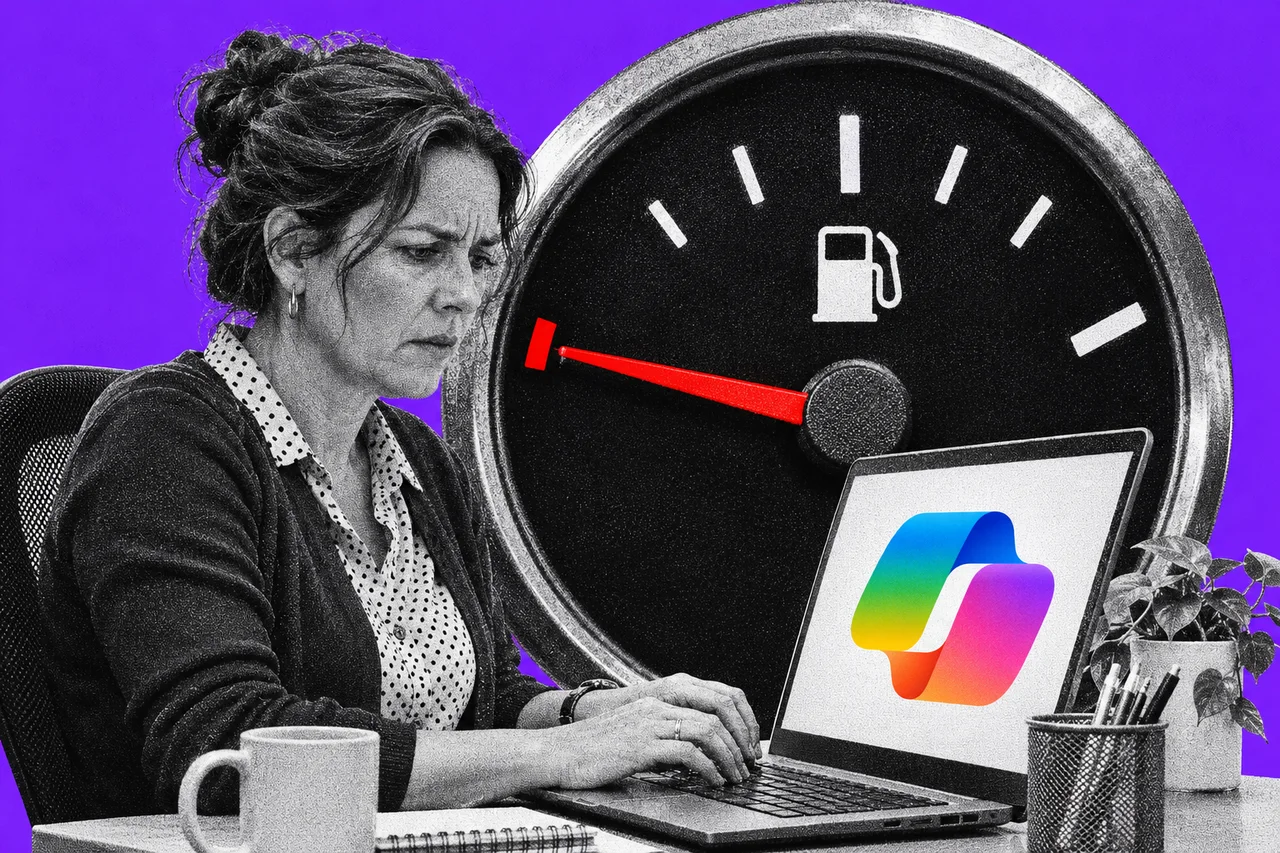
iPhone drivers can now talk to Gemini on Apple CarPlay
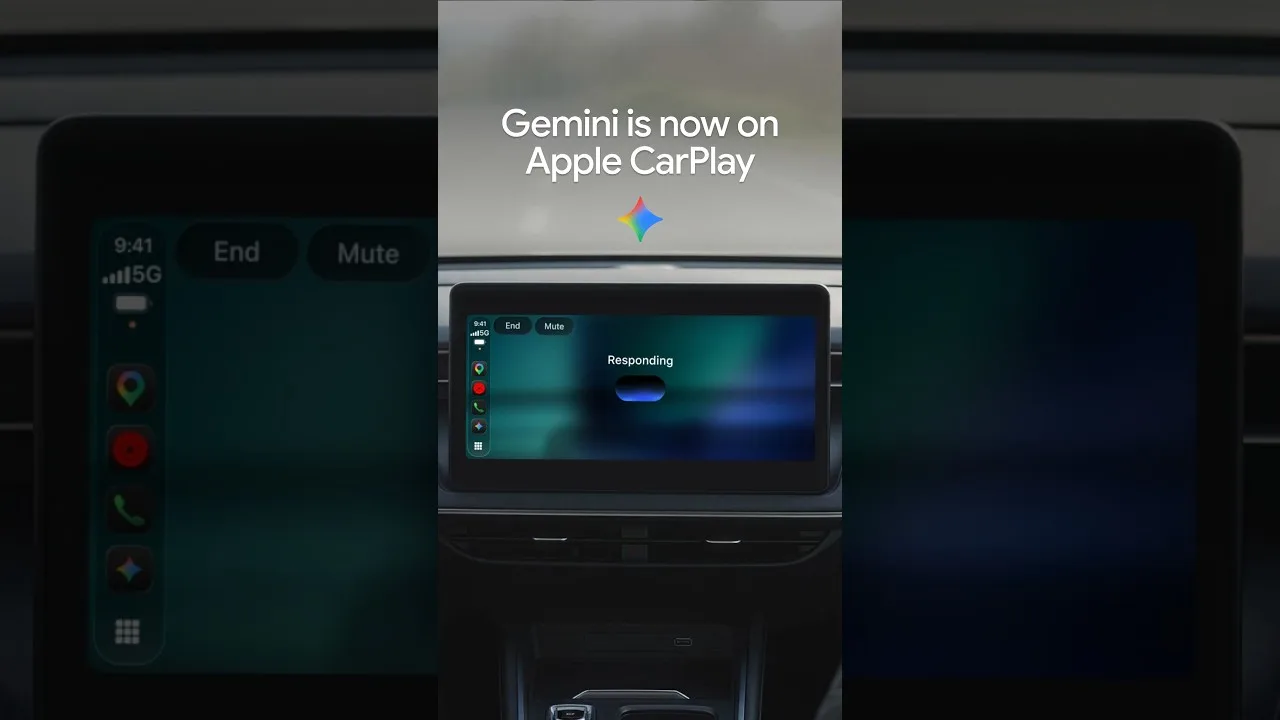
Google’s Gemini app is rolling out on Apple CarPlay worldwide. Tap its icon for a hands-free chat about your day, your inbox or a pitch you’re rehearsing.
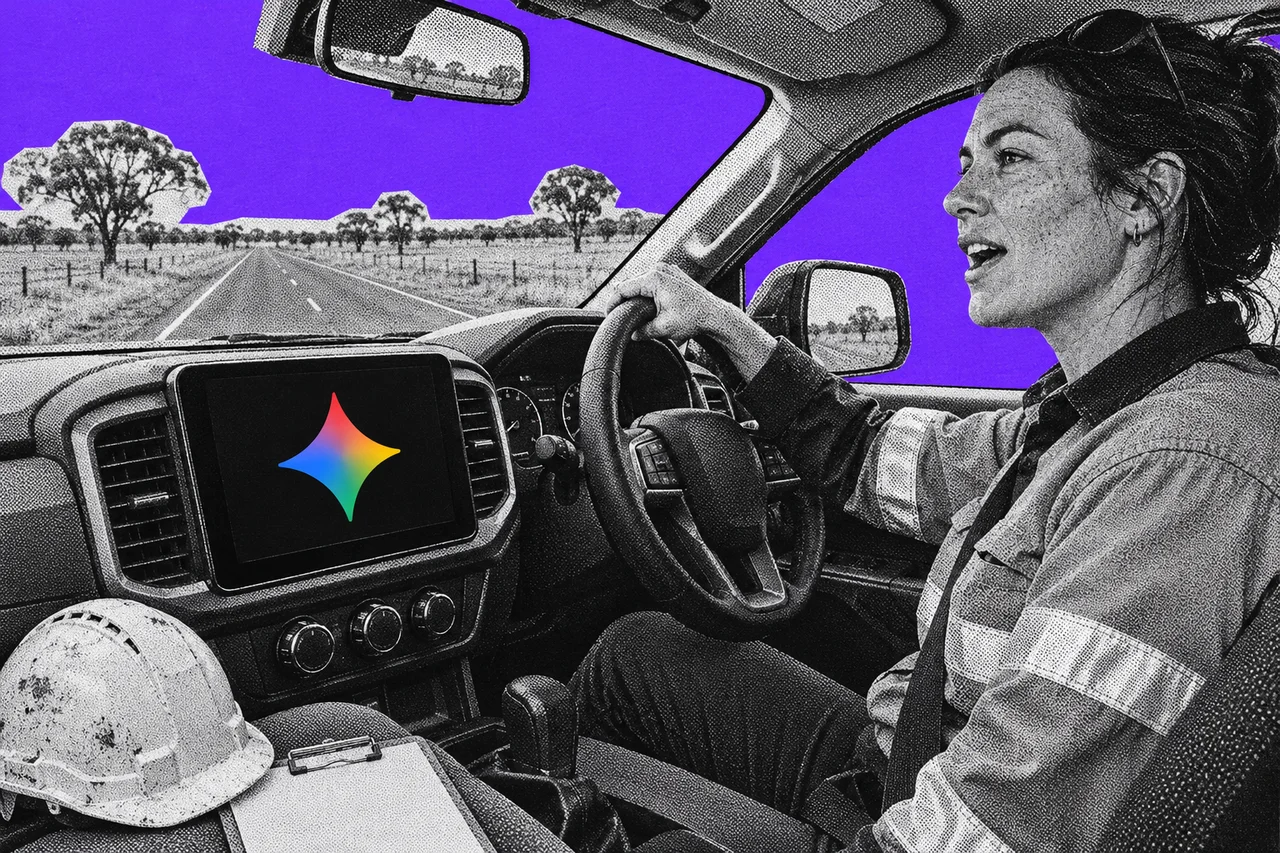
If you drive with an iPhone connected to CarPlay, you can now have a full conversation with Google’s AI on the car’s screen. Ask what your day looks like, have it read out your unread email, or rehearse tomorrow’s pitch out loud.
Google announced on 11 November that the Gemini app is coming to Apple CarPlay. It’s “rolling out globally starting today to all Gemini users on iOS across every supported Gemini Live language”. Australia and English are both on Google’s list of places and languages where the Gemini app works. As it’s a gradual rollout, it may not reach your phone straight away.
Google rolled it out first on Android Auto and cars with Google built-in. Last month, Gemini on Android Auto learnt to check your Gmail and calendar.
One tap, then just talk
Google says to tap the Gemini icon on your CarPlay display the next time you connect. You can start a new conversation or pick up a recent one.
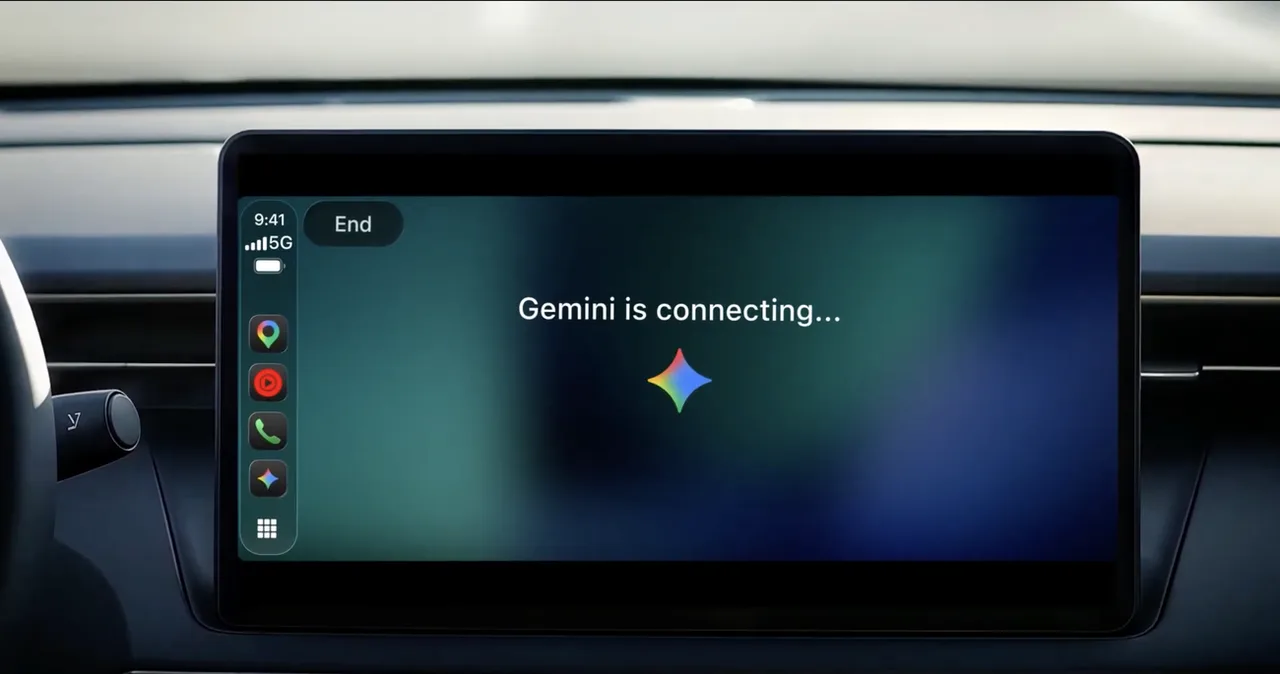
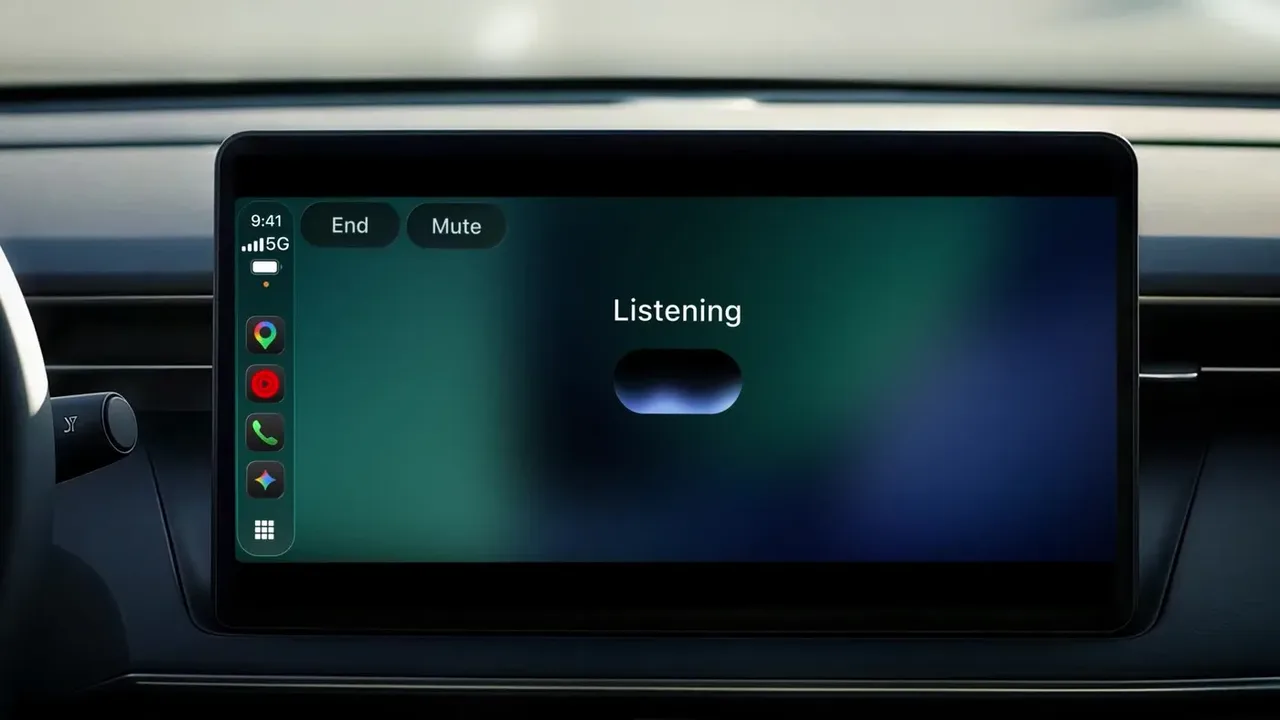
From there it runs as Gemini Live, Google’s voice mode. It’s a back-and-forth chat rather than a single command. You can cut in, change the subject, or pause while you focus on an exit.
Siri remains CarPlay’s built-in assistant. Gemini is an app you open from the CarPlay screen.
What Google says it’s good for
Google’s examples lean towards work on the commute:
- Your day. “What does my day look like?” or “Help me prep for my 10am with the design team.”
- Your inbox. A daily brief, your unread emails, a summary of a long thread, and talking through a quick reply by voice. This uses Gmail and Google Calendar.
- Places. Finding a lunch spot that’s easy to get in and out of.
- Thinking out loud. Brainstorming, or role-playing a pitch before you walk in.
Everything you say syncs to the Gemini app on your iPhone. The notes from a brainstorm are in your chat history when you park.
Three things to do before you drive
Google says the CarPlay app needs three things set up on your phone first:
- The latest version of the Gemini app.
- Microphone permission switched on for Gemini.
- At least one Gemini Live conversation on your iPhone.
The Gemini app itself needs iOS 16 or later, and you generally need to be 13 or older. No paid plan is mentioned: the post says “all Gemini users”.
Work accounts are a catch. Google’s help says Gemini Live on a work or school account can currently use only Google Calendar, Keep and Tasks, so don’t count on the Gmail features there. The Daily Brief must also be switched on first, and isn’t available to anyone under 18.
What happens to what you say
CarPlay chats sync to your Gemini history, so your usual Gemini activity settings apply. Google’s privacy hub says that with Keep Activity on, your chats are saved and deleted automatically after 18 months by default. You can change that to three or 36 months, stop auto-deleting, or turn Keep Activity off.
Even with Keep Activity off, Google keeps chats with your account for 72 hours. Human reviewers read a subset of chats. Google keeps those for up to three years, disconnected from your account.
So treat the car like any other Gemini chat. Talking through a client’s sensitive details on the drive is the same as typing them in.
Checklist
- Update the Gemini app on your iPhone. CarPlay support needs the latest version.
- Allow microphone access for the Gemini app. It’s one of the three CarPlay requirements.
- Try Gemini Live once on your phone. The CarPlay app needs at least one Live chat on your iPhone first.
- Switch on Daily Brief before you rely on it. The in-car daily brief only works once it’s enabled, and not for anyone under 18.
- Check your Gemini activity settings. Set auto-delete to three, 18 or 36 months, or turn Keep Activity off.
- Don’t say what you wouldn’t type. Car chats are saved like any Gemini chat, and kept 72 hours even with Keep Activity off.
Tick items as you go. Your ticks stay in this browser.