Windows 11 24H2 Home and Pro have had their last security update. Check your PCs
Microsoft’s October 2026 security update was the last for Windows 11 version 24H2 Home and Pro. How to check your version and move to 25H2 or 26H2.
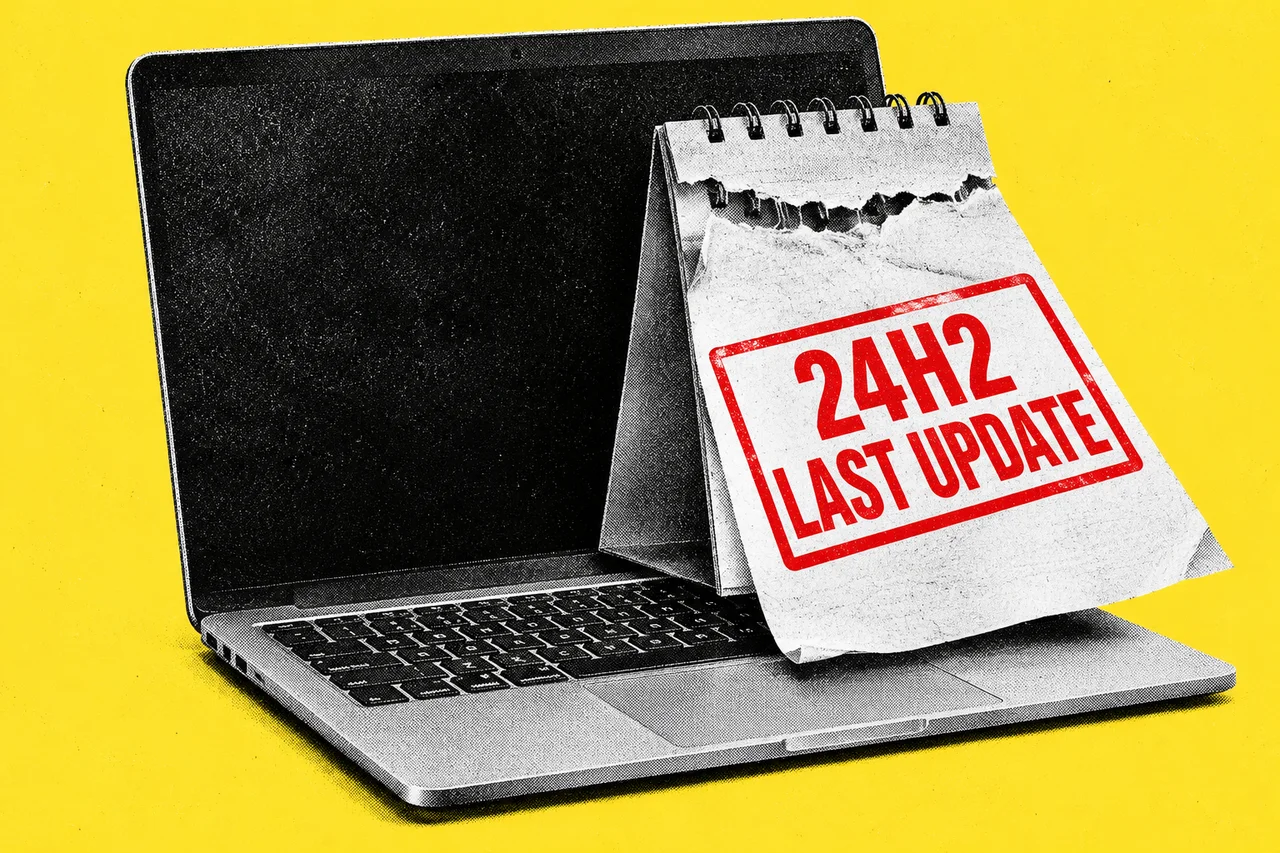
A Windows 11 computer that is still on version 24H2 Home or Pro has now received its last security update.
Microsoft’s Windows message center says Windows 11, version 24H2 Home and Pro reached end of updates on 13 October 2026 (US time), and that the October 2026 monthly security update is the last one available for these editions. Devices still running them “will no longer receive monthly security and non-security preview updates”, Microsoft says.
When we covered the arrival of Windows 11 26H2 on 30 September, the advice was to test one office PC before updating the rest. For computers still on 24H2 Home or Pro, the clock has now run out on that wait. They need to move to a newer version to keep getting fixes.
What has ended, and what hasn’t
Windows 11 gets a new version each year. Home and Pro editions of each version receive 24 months of monthly updates, and Enterprise and Education editions get 36 months, according to Microsoft’s Windows 11 release information. Version 24H2 was released on 1 October 2024, so its Home and Pro run is over.
The release information page lists version 24H2 as “End of updates” for Home, Pro, Pro Education and Pro for Workstations. The cut-off doesn’t apply to everyone on 24H2:
| Windows 11 version | Home and Pro updates end | Enterprise and Education updates end |
|---|---|---|
| 24H2 | Ended 13 October 2026 | 12 October 2027 |
| 25H2 | 12 October 2027 | 10 October 2028 |
| 26H2 | 10 October 2028 | 9 October 2029 |
Dates are Microsoft’s, from its release information page and Windows message center. The last update for 24H2 Home and Pro is KB5127648, dated 13 October 2026, which takes 24H2 to OS build 26100.9711. Its release notes repeat that 24H2 Home and Pro “has reached end of updates”. Microsoft had already said the September 2026 preview update was the final non-security preview for 24H2.
Microsoft’s lifecycle page for Windows 11 Home and Pro also notes that version 24H2 was the last supported version for the Windows 11 SE edition. On our reading, SE devices therefore stop receiving updates along with 24H2 Home and Pro. Anyone managing SE devices should confirm this with the device supplier or Microsoft.
Windows 10 Enterprise LTSB 2016 reached end of updates on the same day. Microsoft recommends organisations still running it move to Windows 11 Enterprise LTSC 2024, with Extended Security Updates available for those that need more time.
Who is likely to be affected
Microsoft’s lifecycle FAQ says Home edition doesn’t support deferring feature updates, so Home PCs will typically receive a new version before the end-of-servicing date. That means many home computers will already have moved on.
The PCs more likely to be stuck on 24H2 are ones where someone has paused or deferred updates, machines that are rarely switched on, and computers that Microsoft has held back for compatibility reasons. In a small office that often describes the spare laptop, the reception PC or the machine running one old piece of software.
How to check and update
Microsoft’s device information help page says to right-click Start, choose Settings, select System and then About. The edition and version appear under Windows specifications.
If it says 24H2 and the edition is Home, Pro, Pro Education or Pro for Workstations, open Windows Update and look for the offer to move to a newer version. Microsoft recommends 26H2 or 25H2. It says 26H2 installs with “only a small download and a quick restart” on PCs already running 25H2 or 24H2. It is offered first to people who have turned on “Get the latest updates as soon as they’re available” in Windows Update, and availability is expanding gradually over the coming months, so not every PC will see it yet. Version 26H1 isn’t an option: Microsoft says it isn’t offered as an in-place update from 24H2 or 25H2.
If Windows Update offers nothing, the PC may be under a compatibility hold, which our 26H2 rollout story explains. That’s the point to involve whoever looks after your IT, rather than leaving the machine on 24H2 indefinitely.
Checklist
- Check each Windows PC’s version. Go to Settings > System > About and read the version and edition under Windows specifications.
- List every PC still on 24H2 Home or Pro. Include spare laptops and rarely used machines, which are the most likely to have missed updates.
- Run Windows Update on those PCs. Look for the offer to move to version 25H2 or 26H2, the versions Microsoft recommends.
- Remove old update pauses. If someone paused or deferred updates on a PC, lift it so the newer version can install.
- Investigate PCs that get no offer. Ask your IT provider whether a compatibility hold applies.
- Check any Windows 11 SE laptops. Confirm with the device supplier or Microsoft whether they still receive updates now that 24H2 has ended.
Tick items as you go. Your ticks stay in this browser.