Signal now blocks screenshots to keep Siri AI out of your chats
Signal is blocking screenshots on iOS 27, and on Android when it spots an AI assistant reading the screen. Why it did it, what changes and how to switch it off.
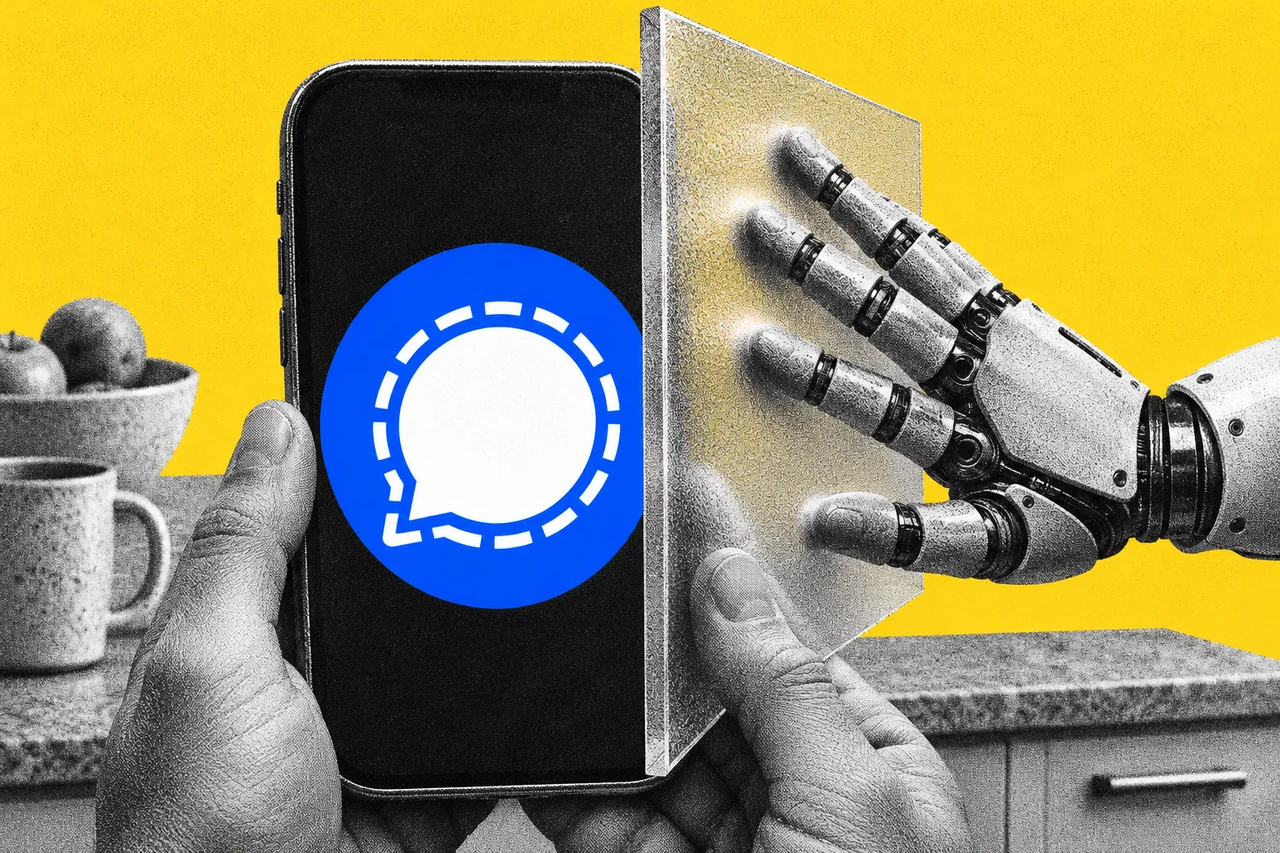
If you use Signal on an iPhone or Android phone, you may find you can no longer take a screenshot of your chats. That’s deliberate.
Signal announced on 20 November that it’s blocking the AI assistants now built into phones from reading its screen. Its president, Meredith Whittaker, called these built-in AI agents “an existential threat to Signal”.
Why a private messenger fears your phone’s assistant
Signal’s messages are encrypted from your phone to the other person’s. The weak point is the screen. Features like Siri AI’s onscreen awareness and Google’s Gemini Intelligence work by scanning what’s in front of you. That lets them answer questions about it or act on it. We explained how that works in what an AI agent actually does when it clicks for you.
Once an assistant has captured a chat, the data can go to whatever local database or remote server the agent is using. “All of this is outside of Signal’s control once the data has been captured,” Signal says. That affects everyone in the conversation, not just the person who owns the phone.
Signal has done this once before. In 2025 it started blocking screenshots on Windows 11 by default to keep Microsoft’s Recall feature from storing its messages.
What changes on your phone
On iPhone (iOS 27), Signal has a new setting called Block Siri AI, under App Security in Signal’s privacy settings. Signal’s screenshot of it shows it switched on. The description reads: “Prevent Siri AI from scanning Signal content. This will also block you from taking screenshots in the app and App Switcher.”
Siri AI is available in English in Australia, so this applies to Australian iPhone users too. We covered what it can do in our iOS 27.2 guide.
On Android, Signal can’t reliably tell when a screenshot is attempted on many Android brands. Instead, it watches for an AI assistant trying to read the screen. When it sees one, it automatically turns on its existing Screen security setting. That only works on Android versions where Signal can detect the assistant, so it won’t cover every phone.
You can turn it off, with a catch
If you need screenshots of a Signal chat, you can switch the protection off in the app’s settings. Signal warns that doing so could expose your messages, and your contacts’ messages, to these AI agents.
Signal also admits the fix is incomplete. Blocking screenshots doesn’t stop an agent reaching messages in other ways, such as reading files already stored on the phone.
Macs aren’t covered
Signal says it can’t reliably block screenshots on macOS, because Apple hasn’t clearly documented a way for apps to do it. Its advice for Mac users on macOS 27 is to add Signal to System Settings, Siri, Excluded Apps. iPhones on iOS 27.2 have the same Excluded Apps list, in Settings, Siri.
Signal wants Apple, Google and Microsoft to fix it properly
Signal is asking the three companies for two things: an easy, documented way for apps to opt out of AI data access, and clear documentation of how their agents handle app data.
It also wants protection from third-party agents such as Meta’s Muse. Many of them, it says, use accessibility permissions as a skeleton key into other apps. Google and Apple are talking to Signal, and it hopes to share more soon.
Checklist
- Update Signal. Install the latest version from the App Store or Google Play so the new protection is in place.
- Check Block Siri AI on your iPhone. In Signal, open Settings, then Privacy. Leave Block Siri AI on, under App Security, unless you need screenshots.
- Check Screen security on Android. In Signal, open Settings, then Privacy, and look for Screen security under App security.
- Exclude Signal from Siri on your Mac. On macOS 27, open System Settings, then Siri, then Excluded Apps, and add Signal.
- Exclude other private apps too. On a Siri AI iPhone with iOS 27.2, add banking, health or work apps to Settings, Siri, Excluded Apps.
- Think before granting accessibility access. If an AI agent asks for accessibility permissions during setup, know they can let it read other apps.
Tick items as you go. Your ticks stay in this browser.