Closed for Christmas? Tell Google and your inbox first
Set special hours on your Google Business Profile and an automatic reply in Gmail or Outlook before you close for Christmas, with each company’s own steps.
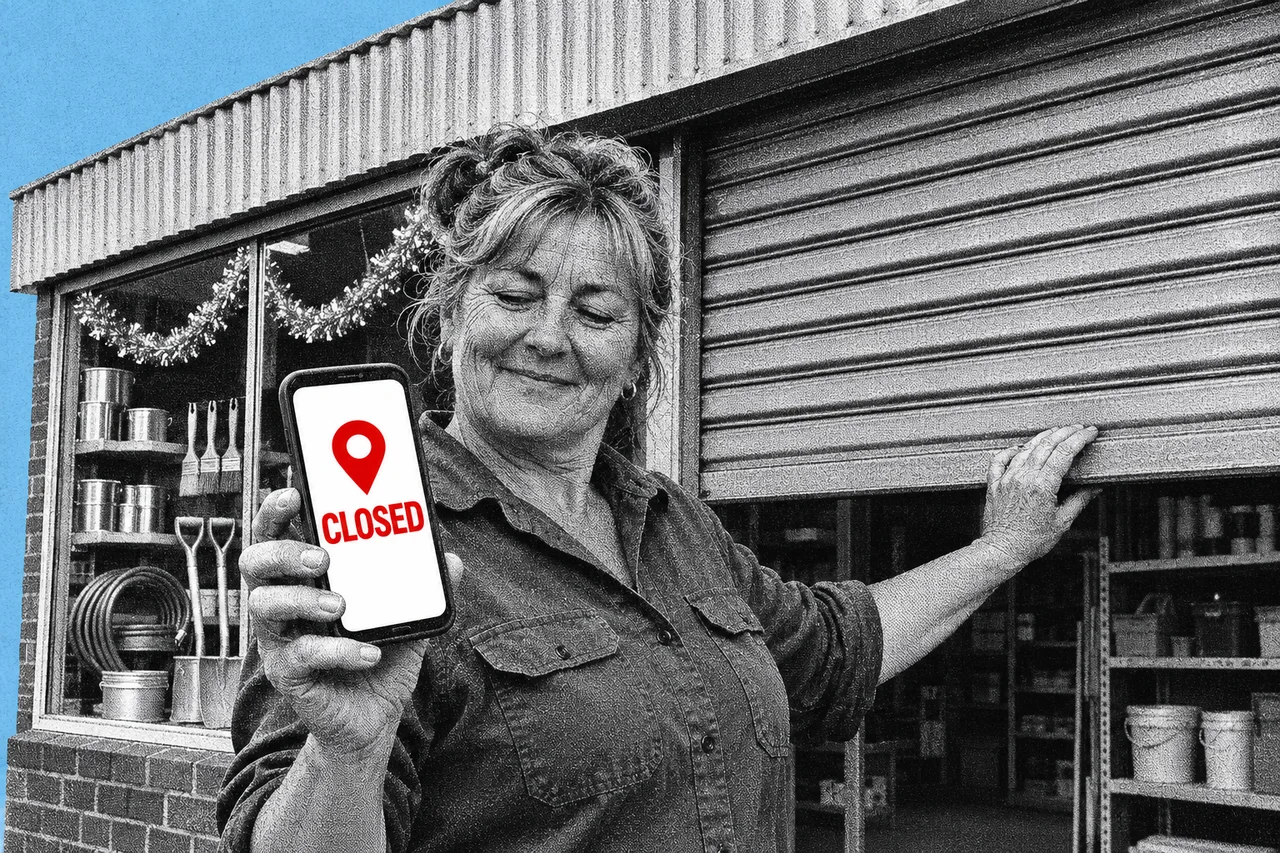
A customer searches for you on Boxing Day, sees “Open” on Google, and drives over to a locked door. A few minutes setting holiday hours stops that. A few more stop your inbox leaving people wondering why you’ve gone quiet.
This year the dates fall awkwardly. Christmas Day is Friday 25 December and Boxing Day (Proclamation Day in SA) is Saturday 26 December. NSW, Queensland, WA and SA also have a public holiday on Monday 28 December. Queensland and SA add part-day holidays on Christmas Eve evening. New Year’s Day is Friday 1 January 2027. Check your own state’s government page for your days.
Special hours: one day at a time
Your Google Business Profile has a feature built for this. Special hours apply only to the dates you choose, and your regular hours stay the same.
Google says it may show customers a warning that your hours might differ on public holidays. Setting special hours in advance tells customers your real times. It even suggests confirming holiday hours when you’re trading as normal.
To set them, go to business.google.com and choose Edit profile, then Hours. Next to “Special hours”, select the edit (pencil) icon. Google lists upcoming holidays for you to Review, or you can choose Add a date for your own days off.
For a day you’re shut, leave the Closed box ticked. For a short day, untick it and enter your hours. Then select Save.
One catch: special hours only show if your regular hours are set to Open with main hours. If you’ve never entered regular hours, do that first.
A week or more off? That’s different
Special hours are for short breaks. If you’re closing for more than a week, Google says to mark the business Temporarily closed instead. You’ll find it under Edit profile, Hours, then the edit icon next to “Hours”.
There’s a trade-off. Google says temporarily closed businesses can rank after open ones for broad searches, depending on your category and what people search for. So only use it for a genuine long close, and switch it off the day you reopen.
If you’ve already had your profile tampered with, our guide to protecting your Google Business Profile covers locking it down.
Gmail: the vacation responder
Gmail’s vacation responder answers emails while you’re away. On a computer, open Settings, then See all settings. On the General tab, scroll to “Vacation responder” and choose Vacation responder on.
Set the first and last day, a subject and your message, then Save Changes. Google says it starts at 12:00 AM on the first day and stops at 11:59 PM on the last, so you can set it now and forget it.
Tick the box to reply only to people in your contacts if you’d rather not confirm to strangers that you’re away. Gmail usually replies to each person once. It replies again if they write again after four days and the responder is still on. Your signature is added to the reply.
On an Android phone, open Gmail’s menu, then Settings, your account and Vacation responder.
Outlook: automatic replies
In the new Outlook for Windows, go to the View tab, View settings, Accounts, then Automatic replies. In Outlook on the web, it’s Settings, Account, Automatic replies.
Turn on the Automatic replies toggle and choose Send replies only during a time period. Then set the start and end. Without a time period, Microsoft says replies stay on until you switch them off.
Work and school accounts also see Send replies outside your organization. Microsoft warns that this answers every email, including newsletters, ads and possibly junk, and recommends Send replies only to contacts instead.
What to put in the reply
Keep it short and useful:
- the day you’re back
- who to call if it can’t wait, and how to reach them
- where customers can still order, book or find answers, such as your website
Checklist
- List your closed days. Note Friday 25 December, Saturday 26 December, any Monday 28 December holiday in your state and Friday 1 January 2027.
- Add special hours on Google. In business.google.com, choose Edit profile, Hours, then the pencil icon next to Special hours, and set each closed or short day.
- Set regular hours to Open with main hours. Otherwise your special hours won’t show on Google.
- Use Temporarily closed only for more than a week. Switch it off the day you reopen, because temporarily closed profiles can rank after open ones in broad searches.
- Schedule Gmail’s vacation responder. Settings, See all settings, General tab: choose Vacation responder on, set the first and last day, then Save Changes.
- Schedule Outlook’s automatic replies. Turn on Send replies only during a time period, and on a work account choose Send replies only to contacts.
- Write a reply with your return date. Include who to contact for anything urgent and where customers can still order or book.
Tick items as you go. Your ticks stay in this browser.