Your iPhone may now ask you to prove you’re an adult
Apple now asks Australian adults to confirm they’re 18 or older for 18+ apps and some settings. You can use a credit card, an ID scan or, with iOS 27.2, a selfie.
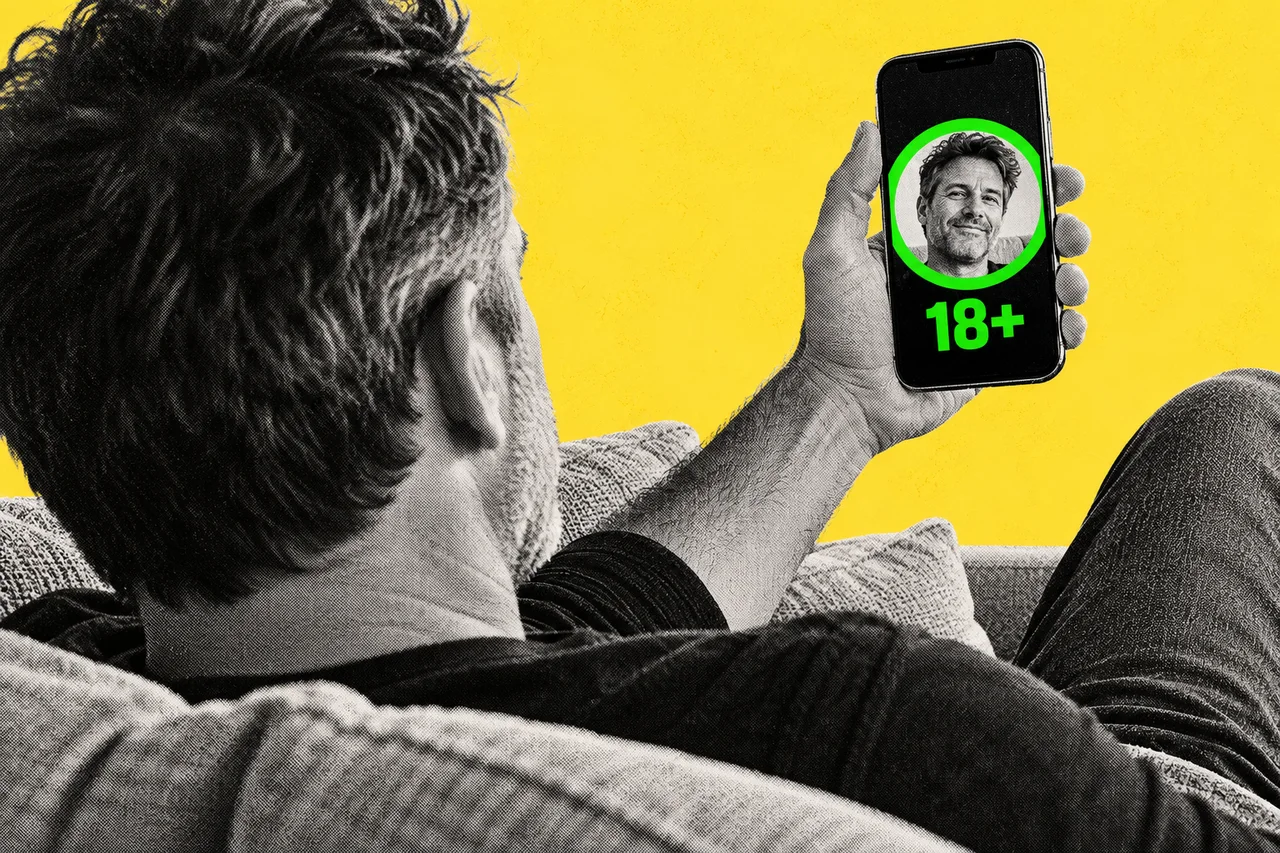
Your iPhone may soon stop and ask you to prove you’re an adult. Apple now asks people with Australian Apple Accounts to confirm they’re 18 or older before downloading 18+ apps or changing some safety settings.
Apple set out the rules in a group of support pages published on 26 October, the same day iOS 27.2 arrived. Australia is one of six places on the list, alongside Brazil, Singapore, South Korea, the UK and the US state of Texas.
What happens if you don’t confirm
Your device keeps working, but some services and actions are limited.
Until you confirm, you get the same default protections as kids and teens. Two of them, Web Content Filter and Communication Safety, are switched on automatically. You’ll need to confirm before you can adjust certain safety settings or download or buy apps rated 18+.
You may be asked when you create an Apple Account, update your software, change certain safety settings or download an 18+ app. If you have an existing account, Apple first checks whether you already have a credit card on file or another eligible method.
Four ways to prove it
In Australia you can confirm with:
- A credit card in your name. Debit cards and gift cards aren’t accepted. Apple doesn’t store the card unless you choose to save it as a payment method.
- A passport scan.
- A driver’s licence or other government ID scan. Apple and its service providers keep the ID image briefly to confirm your age and prevent fraud, then delete it.
- A selfie. This is new in iOS and iPadOS 27.2.
You only need to do it once. To see where you stand, go to Settings, tap your name, then Personal Information, then Age Confirmation. On a Mac, start in System Settings.
Some methods work only on an iPhone or iPad. If you’re on a Mac, Apple Watch, Apple TV or Vision Pro and can’t confirm, do it on an iPhone or iPad instead.
How the selfie check works
Choose the selfie option and tap Get Started. Hold the phone in front of you with your face centred in the frame. Then slowly turn your head right, left, up and down to capture all four angles.
An age-estimation model then checks the images. It runs on your device and on Apple’s Private Cloud Compute. Apple says the selfie isn’t accessible to anyone, not even Apple, and is deleted once your age is confirmed.
For the best result, use even indoor lighting and moving closer. Take off a hat, mask or sunglasses, and keep anyone else out of the frame. There are accessibility options, including spoken instructions. If the selfie doesn’t work, check your internet connection and try again, or use a card or ID instead.
Why now
Apple says age confirmation is “required by law in some states, countries and regions”. Its Australian page doesn’t name a law.
For context, the eSafety age-restricted material codes that cover app distribution platforms and equipment providers took effect on 9 March 2026.
Kids and teens
Under-13s can’t create an Apple Account without a parent or guardian, and must be in a Family Sharing group.
Web Content Filter and Communication Safety are on automatically for kids and teens. Depending on where they live, under-18s may need to join a Family Sharing group with an age-confirmed adult for some actions. Some actions won’t be available until they turn 18.
For other settings worth a look, see seven iPhone settings to change before you use it for work.
Checklist
- Check your age status. On iPhone, go to Settings, tap your name, then Personal Information, then Age Confirmation (System Settings on Mac).
- Update to iOS or iPadOS 27.2 if you want the selfie option. Older versions don’t offer it.
- Have a credit card or ID handy, or use a selfie. A credit card in your name, a passport, driver’s licence or government ID all work. Debit and gift cards don’t.
- Use a well-lit room for a selfie. Remove hats, masks and sunglasses, and keep only your face in the frame.
- Confirm on an iPhone or iPad if your Mac can’t. Some methods only work on iPhone or iPad.
- Check your kids’ accounts sit in Family Sharing. Under-13s must be in a Family Sharing group, and under-18s may need an age-confirmed adult there for some actions.
Tick items as you go. Your ticks stay in this browser.