Myth or fact: Macs don’t get viruses
Apple builds antivirus into every Mac, and that alone tells you the answer. What Mac malware looks like now, how it gets in, and the settings that keep it out.
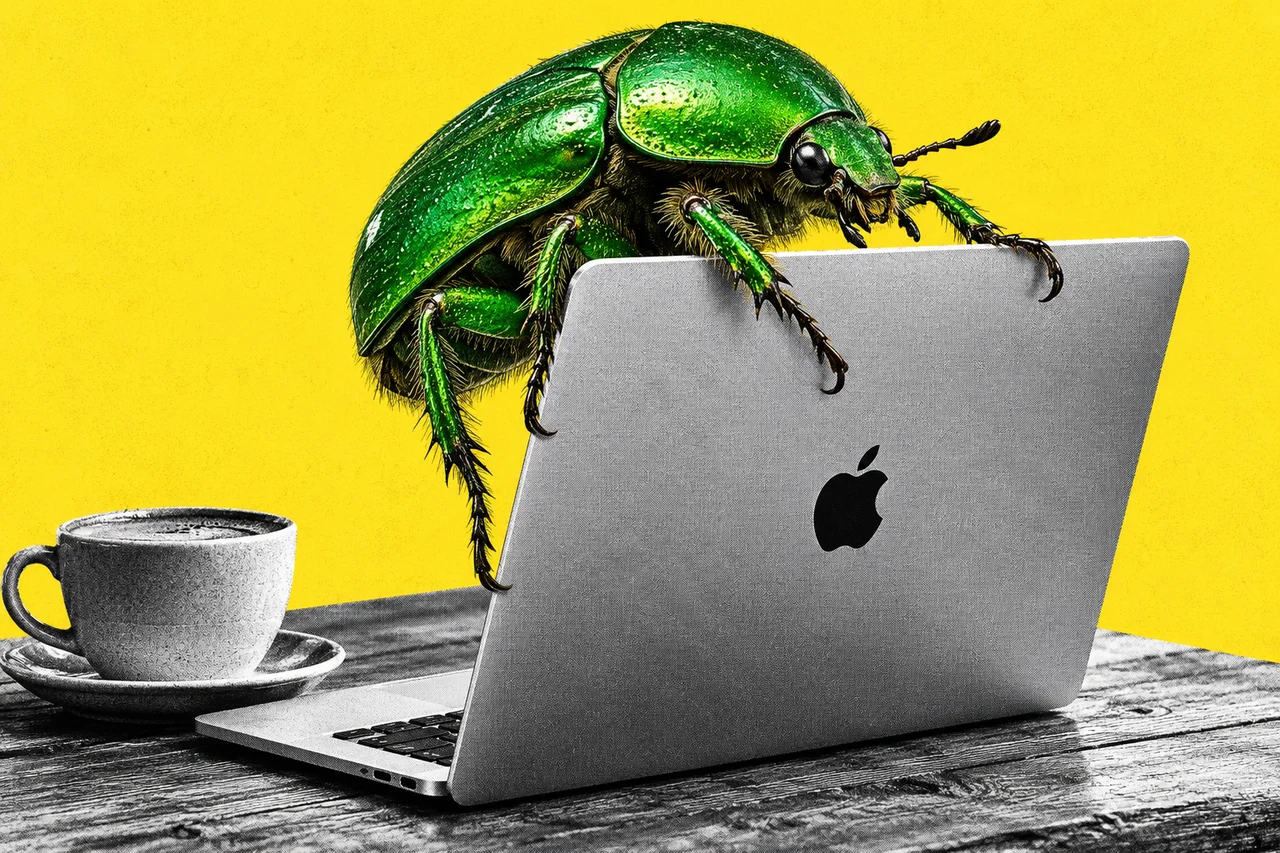
If you’ve ever been told you don’t need to worry about viruses because you’ve got a Mac, here’s the quickest way to settle it. Apple puts antivirus software inside every Mac. It wouldn’t bother if there was nothing to catch.
Verdict: myth. Macs are well protected, but they do get malware. In 2026 most of it is built to steal your passwords, and it usually gets in because someone was talked into letting it.
Apple answers the question itself
Apple’s Platform Security guide, its technical handbook, says macOS “includes built-in antivirus technology called XProtect” for detecting and removing malware.
XProtect works from a list of known threats. Apple updates that list automatically, and by default a Mac checks for new versions daily. When XProtect spots known malware, “it blocks it and moves it to the Trash”.
The guide goes further: “Should malware make its way onto a Mac, XProtect also includes technology to remediate infections.” That’s Apple saying, in plain print, that malware can make it onto a Mac.
XProtect is one layer of several:
- Gatekeeper checks apps before they open and is designed to help ensure that only trusted software runs.
- Notarisation is Apple’s own malware scan. Developers who distribute outside the App Store send their apps to Apple to be checked.
- Background updates quietly deliver fresh malware definitions between normal macOS updates. Apple says they can remove known malicious software that’s already installed after you restart.
So the “myth” isn’t that Macs are safe. They’re among the better-protected computers you can buy. The myth is that the protection makes Macs immune.
What Mac malware looks like now
Forget the old idea of a virus that slows your computer down or flashes messages on screen. Today’s Mac threats are mostly quiet thieves, called infostealers.
Microsoft’s threat intelligence team described three big Mac campaigns in February: DigitStealer, MacSync and Atomic Stealer. It says they harvest “credentials, session data, secrets from browsers, keychains, and developer environments”. Put simply, saved passwords, the logins that keep you signed in, and anything stored in the Mac’s own keychain.
Jamf, which makes security tools for Apple devices, reported another in August called AmnesiaStealer. It takes the keychain, browser data, Apple Notes and Telegram.
Google’s threat intelligence group tracked a group that went after people in cryptocurrency and venture capital. It used what appears to be a hijacked Telegram account and a fake Zoom meeting to get a Mac user to paste in a “fix” command.
A stolen browser session can let a thief into an account you’re still signed in to, without needing your password.
The trick is getting you to open the door
None of these needs a clever hole in macOS. They need you to say yes. The security researchers describe the same few tricks again and again.
Fake downloads. Atomic Stealer spread through fake installers for AI tools, according to Microsoft, and DigitStealer through fake utility software. Jamf found AmnesiaStealer behind a fake “Download for macOS” page on GitHub.
Ads in search results. The same Microsoft report says Mac users often reach these fake sites through Google Ads or other malicious advertisements. Searching for an app and clicking the top result isn’t always safe. Type the maker’s address yourself instead.
“Paste this into Terminal.” This is the big one, sometimes called ClickFix. A page shows a fake CAPTCHA, update or download error. Then it gives you a short command to copy into the Mac’s Terminal app “to fix it”.
In August, Microsoft described a campaign that used a fake “Download for macOS” page to get people to paste in a command. It delivered stealers such as MacSync or Atomic Stealer. A command you paste into Terminal runs with your permission, so it can skip some of the checks macOS normally applies to downloaded apps.
Clicking past the warning. When you open an app Apple can’t check, macOS warns you. Apple’s support page shows how to override that with the Open Anyway button in Privacy & Security. Plenty of fake installers come with instructions telling you to do exactly that.
Updates do real work
Jamf found that AmnesiaStealer tries two macOS weaknesses Apple closed years ago, and both fail on macOS 26. It still stole plenty by asking for the user’s password. Updates shut doors, but they don’t replace caution.
The Australian Cyber Security Centre has a guide for small businesses using Apple devices, prepared in consultation with Apple. It says to turn on automatic updates so security fixes are installed early. It names XProtect as the Mac’s built-in antivirus and says it updates itself automatically, and like Apple, it doesn’t say whether a Mac needs extra antivirus from another company.
For the accounts the stealers are after, our guide to two-factor authentication for business accounts covers the next layer of defence.
Checklist
- Turn on automatic updates. Open System Settings > General > Software Update and switch on Automatic Updates.
- Keep security updates switched on. On macOS Tahoe 26 or later, in System Settings > General > Software Update, click More Info next to Automatic Updates and make sure “Install system data files and security updates” is on.
- Get apps from safe places. Apple says the App Store is the safest source. In System Settings > Privacy & Security, set “Allow apps downloaded from” to the App Store, or the App Store and identified developers.
- Never paste a command a website gives you into Terminal. No genuine CAPTCHA, update or download needs you to.
- Think twice before clicking Open Anyway. If an app’s install steps tell you to override the Mac’s warning, stop and check where the download came from.
- Download from the maker’s own website. Type the address yourself rather than clicking an ad in search results.
Tick items as you go. Your ticks stay in this browser.