Your iPhone has a scam check that’s switched off. Here’s how to turn it on
iOS 27 can warn your banking and other apps when it looks like a scammer is pressuring you. It’s off by default, and only works in apps that support it.
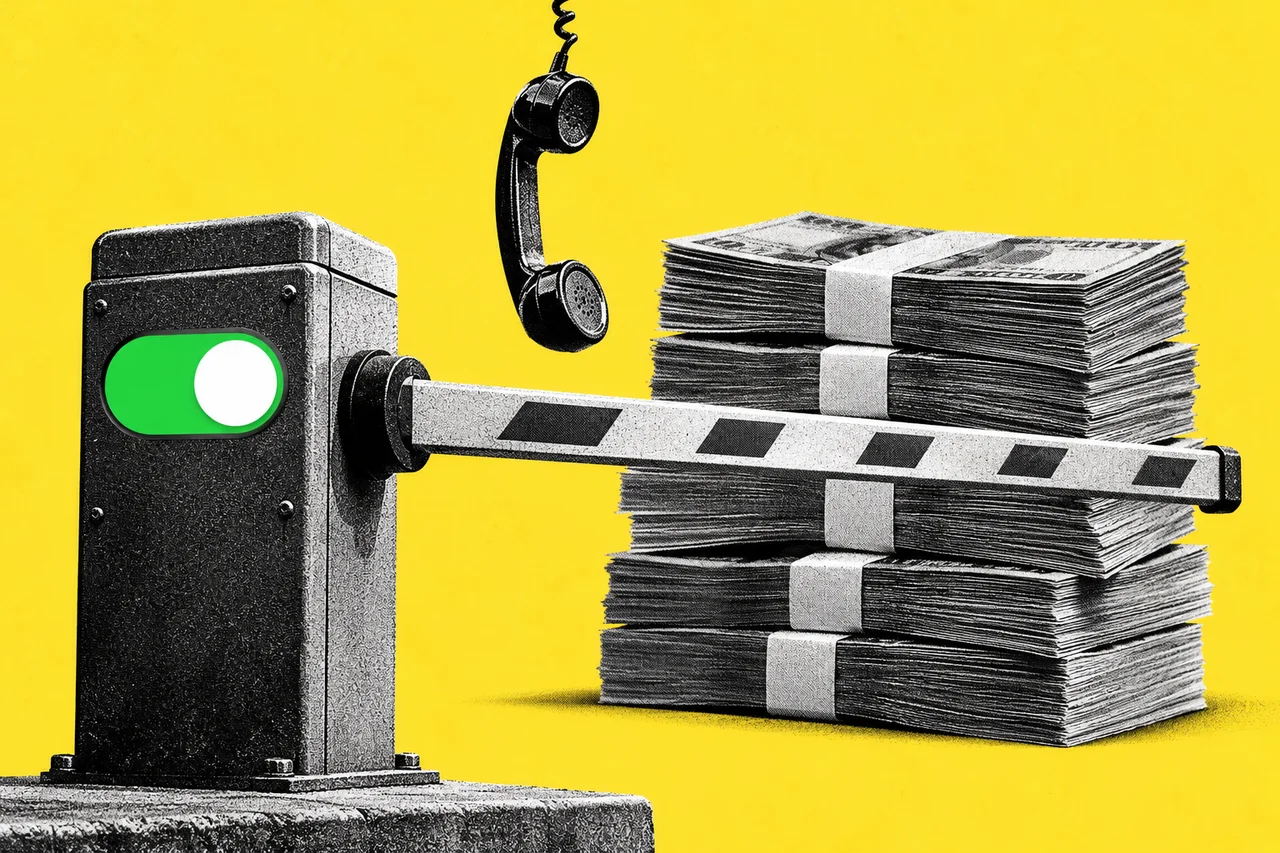
If a scammer rings pretending to be your bank and talks you into moving money, your iPhone can now tip off the app you’re using. But only if you’ve switched the feature on.
It’s called Impersonation Risk Detection, and it arrived with iOS 27. It’s off by default.
What it does when you hit “pay”
Apple’s support page says the feature looks for signs of a scam in progress. Think of someone posing as your bank, a government agency or someone you trust, pushing you into a risky action.
It kicks in when a supported app asks for a check. Apple’s examples are making a payment or changing critical security details, such as your password.
Your iPhone then looks at information about the device and your Apple Account and hands the app one of three answers:
- Unknown. No evidence of suspicious activity was found. Apple stresses that this doesn’t mean the action is safe.
- Medium. Some signs of suspicious activity.
- High. Significant signs of suspicious activity.
What happens next is up to the app, not Apple. It might ask you to prove who you are, hold the payment for a while or show you a warning.
Your data stays on the phone
Apple says the analysis happens on your device, so it never receives the data used to work out the risk level. And it never looks at the content of your Photos, Messages or Mail.
The app gets the risk level and nothing else. Apple does learn what kind of action you were attempting when an app asks for a check.
How to switch it on
The feature comes with iOS 27 and iPadOS 27, which Apple released on 14 September. On your iPhone or iPad:
- Open Settings.
- Tap Privacy & Security, then scroll down and tap Impersonation Risk Detection.
- Turn on Share with App Developers. You may be asked to sign in to the App Store with your Apple Account.
Apple says changes to the setting can take up to 24 hours to take effect. That applies to the main switch and to the settings for each app.
So switch it on now, not when you think you need it. Apple also warns: if someone tells you to turn this feature off, you may be the victim of a scam.
Which apps use it?
This is the catch. The check only works in apps that support it, and Apple hasn’t published a list.
We searched for Australian banks saying their apps use it and couldn’t find one as of 21 October. So for now, turning it on mostly means you’re ready when your bank or payment app adopts it.
Once apps start asking, you’ll see them on the same settings screen. Recent Activity lists the apps that have requested a check, and Reasons for Access shows what you were doing each time. You can tap an app and turn off its switch to stop it asking.
Android has its own version
Google is building similar protections into Android, including scam checks in Google Messages and hiding login and payment screens in Chrome while you share your screen. Our story on Android’s new Gemini scam protections covers what’s available in Australia so far.
Checklist
- Check you’re on iOS 27 or iPadOS 27. The setting isn’t in earlier versions, so install the update first.
- Turn on Impersonation Risk Detection. Settings, Privacy & Security, Impersonation Risk Detection, then switch on Share with App Developers.
- Allow 24 hours. Changes to the setting can take up to a day to take effect, so do it now rather than when you need it.
- Look at Recent Activity now and then. It shows which apps have asked for a risk check and why.
- Treat any request to switch it off as a red flag. Apple says someone telling you to turn it off may be scamming you.
Tick items as you go. Your ticks stay in this browser.