Shopify's new Canvas editor is worth trying on a copy of your store
Shopify's new AI-assisted store editor is rolling out. Check theme compatibility, app support and update limits before changing a working shop.
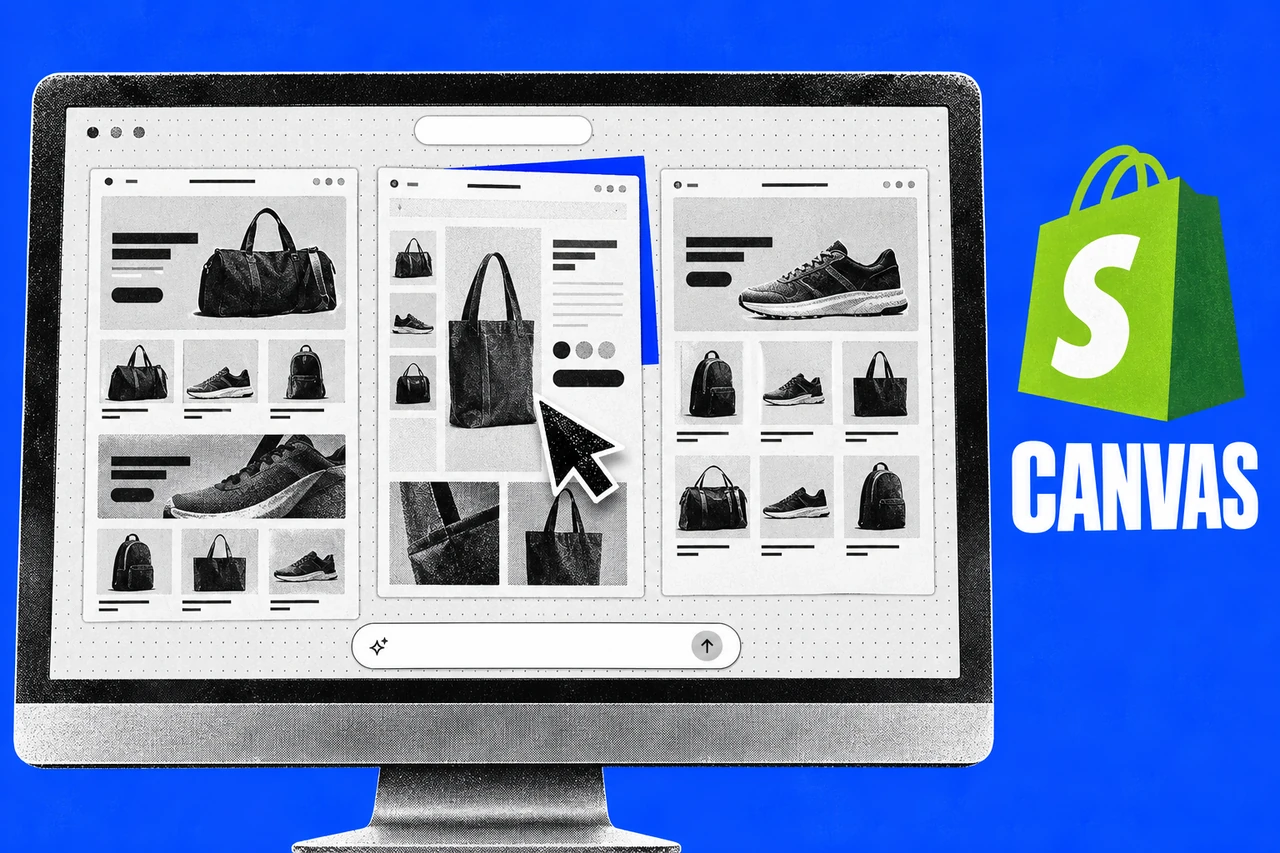
Shopify’s new store editor puts the home page, product pages and collection pages in one workspace, with its Sidekick AI assistant available to change them. For a small retailer, the first sensible experiment is a copy of the shop that’s already working.
Canvas was announced on 1 October and is rolling out over the coming days. Shopify says it is early in development and is not replacing the existing editor yet. Its Help Centre is more specific: early access is available only to certain stores.
The announcement and eligibility pages do not give a separate Australian launch date or country-by-country access list. Australian merchants should check whether Canvas appears in their own admin before planning work around it. A general rollout announcement is no guarantee that a particular store has access today.
What you can do with it
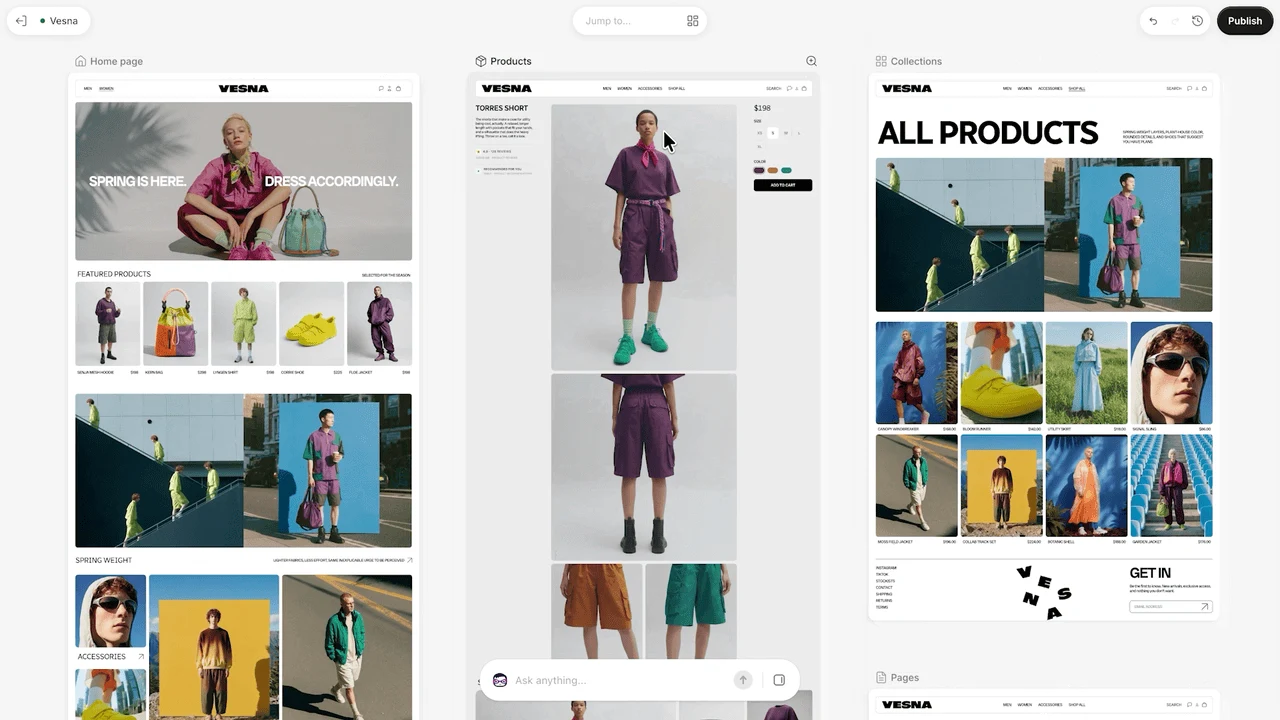
Canvas displays a store’s templates side by side. You can move around the workspace, zoom into a page, change text and block settings, or describe a change to Sidekick. Shopify’s demonstration shows the home, product and collection templates together, rather than one page at a time.
The previews are interactive. You can inspect different products, collections and screen sizes before publishing. That gives an owner and a designer a way to review how changes fit across a shop, although we have not tested the editor or the quality of its output.
Check your theme and the features you depend on
Canvas is desktop-only, so this work needs a computer. The plan must include theme customisation, and staff need the Online store > Themes > Edit code permission to open it.
It supports themes developed by Shopify and custom themes, but not third-party themes. That distinction matters if you bought your design from another developer in the Shopify Theme Store. Paying for a Shopify subscription does not make every theme compatible.
The detailed requirements also describe limits worth checking before a redesign:
- You cannot add or configure app blocks or app embeds in Canvas
- You cannot customise a theme for different markets inside Canvas
- Canvas-edited themes do not receive theme updates, and their theme files cannot be downloaded
Translations and rollouts need a closer reading than the short launch announcement. You cannot translate theme content directly in Canvas, but Shopify says to use Translate & Adapt. For manual translation, it specifies the Default theme content resource.
A Canvas-edited theme can be added to a rollout as a replacement for the main theme. It cannot be opened or edited from the rollout; edits need to happen in Canvas.
Our recommendation is to list the features your current shop relies on and check each against those limits. An attractive new layout is only part of the job. A shop that depends on app embeds or different designs for different markets needs those requirements settled first.
What it costs in Australia
The Canvas announcement and Help pages we checked do not publish a separate Canvas fee. They require a plan with theme customisation; they do not promise access to every subscriber immediately.
For context, Shopify’s Australian pricing page, checked on 2 October, lists Basic at A$56 a month on monthly billing, or A$42 a month on yearly billing. Those are the advertised platform subscription rates, not a quote for a Canvas project. Check the billing terms and tax treatment before changing plans, and budget separately for any paid theme, apps or design help you choose.
Try a duplicate before publishing
Shopify’s instructions allow you to duplicate a supported theme in Canvas. The original remains in the theme library and can still be edited in the existing editor. The copy is edited only in Canvas, and changes do not sync between the two.
Canvas saves work automatically. Customers see changes only after publication; on a live Canvas theme, you use Update, then Publish changes. Shopify also provides theme history for restoring earlier versions. The ordinary Undo control cannot reverse a Sidekick change, so learn the recovery options before a large edit.
Use the preview widths to inspect desktop, tablet and mobile layouts, and browse the preview with the inspector disabled. Before publishing a duplicate, check that it contains the latest work from your team.
For a bigger redesign, our website-rebuild guide helps set the brief. Canvas offers another way to make the changes; the owner still needs to decide which changes the business needs.
Checklist
- Check access on a computer. Look in Shopify’s Online Store themes area for Canvas and confirm your theme is supported
- List the shop’s dependencies before editing. Check app blocks, app embeds, translations and market-specific designs against Shopify’s Canvas requirements
- Start with a duplicate of a supported theme. Keep the original available and remember that the two copies do not share later changes
- Review every preview width before publishing. Inspect desktop, tablet and mobile layouts and follow the shop’s links with the inspector disabled
- Confirm the right version is ready. Check the latest team changes and theme-history recovery options before selecting Publish changes
Tick items as you go. Your ticks stay in this browser.