

News · Marketing
Google Analytics now lets you allowlist your own domains, but test before you switch it on
GA4 can now discard web events from hostnames not on your approved list. It helps with spam, but a missed domain means data lost for good. Test it first.
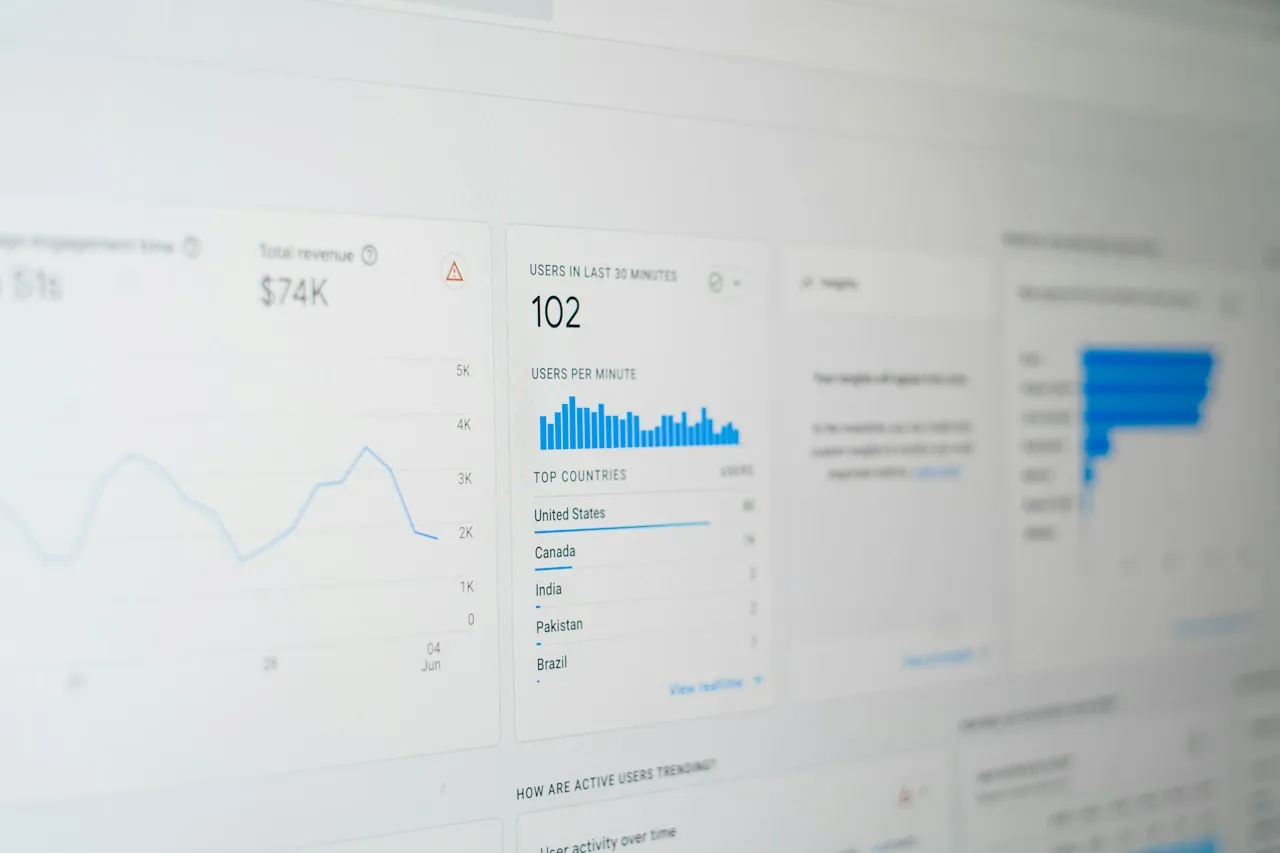
Google Analytics 4 can now keep only the data that comes from domains you approve. In its What’s new in Google Analytics release notes dated 21 September 2026, Google says GA4 “now supports Include data filters for hostnames, allowing you to create an allowlist of approved domains authorized to send event data to your property.”
That can clean up the spam and stray traffic that inflates small-business reports. The catch is that data filters are permanent. If your list leaves out a domain you actually use, GA4 will discard that traffic and you cannot get it back. Test the filter before it takes effect.
What changed
Hostname filters first arrived on 11 June 2026, but they could only exclude domains. Google’s release note said they let you “filter out (exclude) events based on their hostname”. The new Include mode turns that around: you list the hostnames that should report to GA4, and events from any other hostname are filtered out. Google says the exclude-only approach “required ongoing manual updates to keep up with new sources of spam”.
Google points out two details in the 21 September note:
- Empty hostnames: “Include filters will automatically block events with empty hostnames (such as gtag.js traffic)”, because “a missing hostname typically indicates spam or abnormal traffic.” Google doesn’t explain the gtag.js example, so check your own data in Testing before you rely on it.
- Measurement Protocol: Include filters “will not be applied to events sent from the Measurement Protocol”, so events sent that way are not blocked. On our reading, that means spam sent through the Measurement Protocol will still get through.
Google’s Data filters page adds that all active “Include only” filters are combined (Google says “unioned”) and applied first, followed by any active Exclude filters. As of 25 September, Google’s step-by-step hostname filter guide still describes only excluding hostnames, so your screens may differ. Trade site PPC Land, which reported the change, says the release does not explain how subdomains or wildcards are matched. The existing guide offers two match types, “Exactly matches” and “Contains”.
Why it matters, and the risk
A hostname is the domain part of a page address. Google’s example is that for www.example.com/contact.html the hostname is www.example.com. On our reading, GA4 treats www.example.com.au and example.com.au as two separate hostnames.
Stray hostnames can show up when your tracking code runs somewhere other than your live site. Illustrative examples: a staging copy of the site your web developer forgot to untag, or a site that copied your pages (tracking code included). Each one adds visits and enquiries that did not happen on your site, which can distort the numbers in a weekly marketing review.
The risk is getting the allowlist wrong. Google is blunt about data filters: “Once you apply a data filter, the effect on the data is permanent”, and excluded data “is never processed and will never be available in Google Analytics or BigQuery”. Filters also do not clean up history. They apply only from creation onwards. Hostnames that are easy to forget, as illustrative examples, include a booking system on its own subdomain, a separate online shop domain, a third-party checkout or payment page that carries your tag, the www or non-www version of your main domain, and translated or cached copies of your pages.
Who it affects
Any business using GA4 on its website. Google’s note sets no deadline, and on our reading nothing changes unless someone creates a filter. You need the Editor role or above at the property level to create one, and Google allows up to 10 data filters per property. If an agency set up GA4 for you, check who has Editor access.
What to do
Google’s guide builds testing into the process. A filter can be set to one of three states. Testing labels matching data with a “Test data filter name” dimension. Active “applies the data filter to incoming data and makes permanent changes”. Inactive means GA4 is not evaluating the filter. Google says to wait 24 to 36 hours after setting a filter to Testing before validating, and that an activated filter starts filtering within 24 to 36 hours. Google’s guide documents testing only for exclude filters and doesn’t say whether an Include filter in Testing flags the events it would keep or the ones it would discard, so check both before you activate.
On our reading, a new include filter is best left in Testing for one to two weeks, not a day or two, so the test covers a full weekly cycle, and booking or checkout pages that get few visits have time to appear. If you want to hide data only from certain reports without losing it, Google recommends report filters instead.
Checklist
- Find your hostnames. In GA4, go to Explore, start a Free form exploration, add the Hostname dimension and the Event count metric, and set the date range as long as your property allows (on our reading, three months or more if available).
- Sort legitimate from stray. List every domain and subdomain you own or use: main site (www and non-www), booking, shop, checkout and landing pages built on other platforms (see our ad-to-page checklist). Ask your web developer and booking or shop provider to confirm.
- Check your access. Confirm you have Editor or above at the property level, and count your existing data filters against the limit of 10.
- Create the filter in Testing. Go to Admin, then Data collection and modification, then Data filters. Create a web hostname traffic filter and choose Include (your screens may differ from Google’s current guide), add your approved hostnames, and set the state to Testing.
- Validate. After at least 24 to 36 hours, build a Free form exploration with Test data filter name, Event name and Hostname as rows and Event count as values, then add a filter where Test data filter name contains your filter’s name. Google’s guide uses Test data filter name and Event name; on our reading, adding Hostname is what shows you which domains are affected.
- Leave it for a week or two. Recheck the exploration before you decide.
- Activate, then record it. Set the filter to Active, note the date and the approved list somewhere your team can find it, and update the list whenever you add a new domain or booking tool.
Tick items as you go. Your ticks stay in this browser.
Sources 7 sources
- Google Analytics Help: What's new in Google Analytics
- Google Analytics Help: Filter out web hostname traffic in Google Analytics
- Google Analytics Help: Data filters
- Google Analytics Help: Filter out internal traffic
- Google Analytics Help: Analytics dimensions and metrics
- Google Analytics Help: Apply filters to detail reports
- PPC Land: Google Analytics filter blocks data from domains not on an approved list