Chrome adds a new warning for sites that look like scams
Chrome’s Enhanced Protection now flags suspicious sites before they’re confirmed dangerous, checks pages with Gemini and warns about fake ‘fix it’ commands.
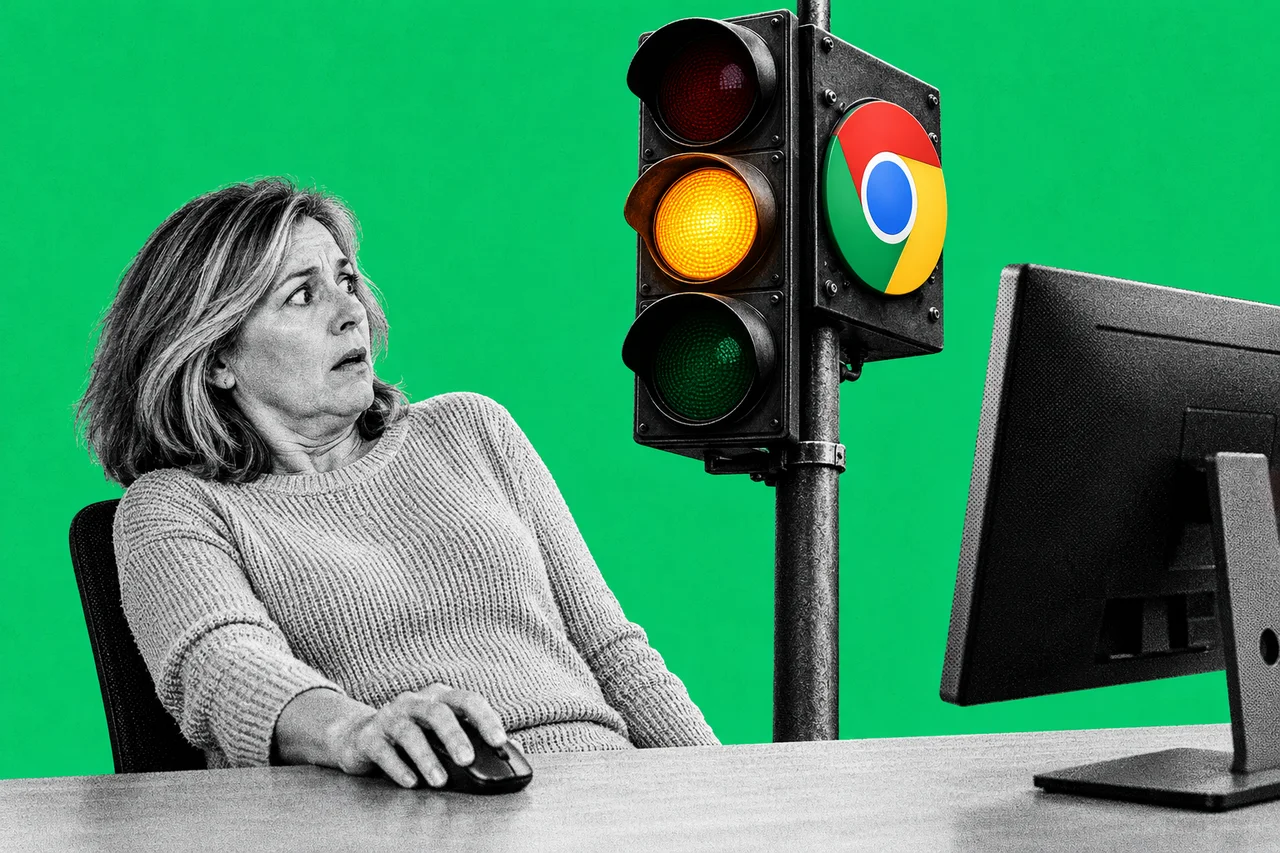
Chrome can now tell you a site looks dodgy before Google is sure it’s a scam. Think of it as an amber light before the red one, though Google hasn’t said what colour it is.
Google announced the change on 20 October, along with two other scam defences. All three only work if you’ve switched on Chrome’s Enhanced Protection, which isn’t the default.
A warning before the red screen
Until now, Chrome’s best-known site warning was the full-page red screen for sites Google knows are dangerous. That stays.
The new warning covers pages that show “deceptive patterns” common on known malicious sites, where Google is less certain. These warnings look different from the red screen in format, icon, colour and wording, so you can judge the risk quickly.
Tailoring the design this way lets Google show more warnings safely, it says. You can still choose to visit a site after a warning.
Gemini reads the suspect page
Last year, Chrome used Gemini on supported devices to spot fake tech-support pages. Google has now moved that check to a more powerful Gemini model on its servers. That brings it to everyone with Enhanced Protection, and widens it to fake antivirus and fake browser-update pages.
The model looks at which brand a page is imitating, what it seems to want from you and how scam-like it is. Safe Browsing then weighs that with the site’s reputation and other signals.
Chrome only analyses page text when a site already shows strong signs of a scam. Google says any page content sent off your device isn’t logged, kept or used to train its models.
A warning for ‘copy this to fix it’ scams
ClickFix scams show a fake error and tell you to copy a command and paste it into your computer to fix it. The command you actually copy is often different from the one on screen. It almost always uses tools built into the computer’s operating system, such as PowerShell, to download malware. That slips past Chrome’s download checks.
Chrome now notices when you copy what looks like one of these commands. It strips personal details from the copied text, sends it to Safe Browsing to check, and shows a warning if it’s dangerous. Chrome will never ask you to repair it this way.
The trade-off
Enhanced Protection is a privacy trade. It sends Google the address of each site you visit. It also sends a small sample of page content, extension activity and system information, which Google says is only used for security.
The default, Standard Protection, warns about sites already known to be dangerous. It checks a disguised part of each address through privacy servers, so Google doesn’t see it alongside your IP address. It only sends full addresses and page content when a site does something suspicious.
Google says Enhanced Protection users are ten times safer from phishing and other scams. Its footnote says that figure compares the average number of safety warnings shown to each group.
If you look after a parent’s laptop or a few office PCs, it’s a setting worth deciding on deliberately. Android users can also check our story on Gemini scam checks in Google Messages.
Checklist
- Open Chrome’s security settings. On a computer, select the three-dot More menu, then Settings, then Privacy and security, then Security.
- Choose Enhanced protection if the trade-off suits you. It turns on the new suspicious site warnings, Gemini scam checks and copied-command warnings.
- Stay on Standard protection if you’d rather not share every address. You keep warnings for known dangerous sites without sending Google the full address of every site you visit.
- Never paste a command a web page tells you to run to fix an error. Close the tab instead.
- Consider Enhanced Safe Browsing for your Google Account too. Google recommends turning it on for your account as well as in Chrome, which extends the protection to Gmail.
Tick items as you go. Your ticks stay in this browser.